

Docs · Booking
The Booking module
A booking & promotion CRM — venues, labels and press, template outreach email, concerts and venues on a map, and the money behind the tour.
What the Booking module does
The Booking module is a booking & promotion CRM: keep every venue, label and press contact in one place, reach out with reusable templates, and track your concerts and money. It's included in the Booking and Pro plans.
Booking Home
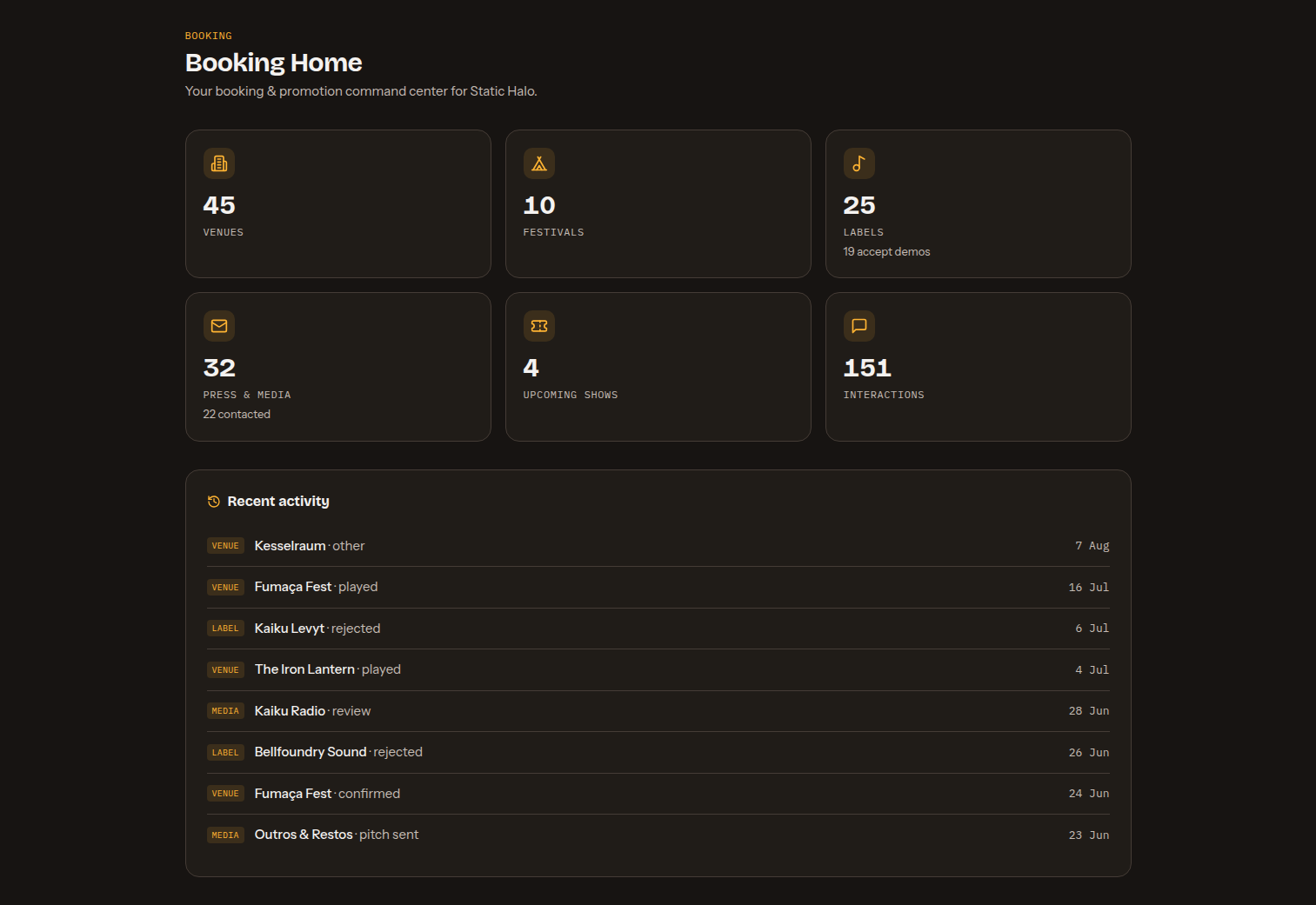
Booking Home is your command center for the active band. Six stat tiles summarise your database — Venues, Festivals, Labels (with how many accept demos), Press & Media (with how many you've contacted), Upcoming shows and Interactions — and a Recent activity feed lists your most recently logged touchpoints. The directory tiles link straight to their lists.
Venues, labels & press
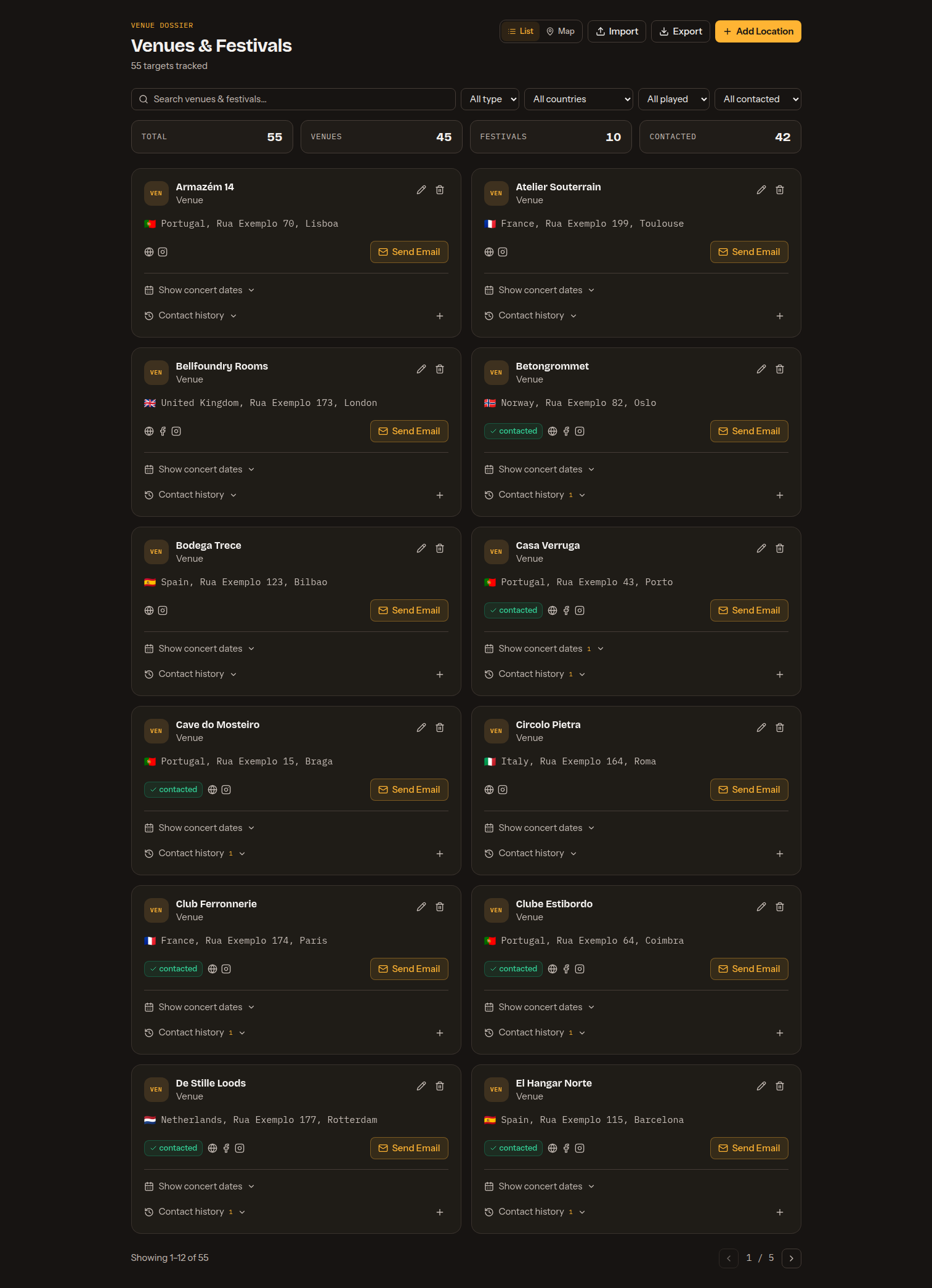
The Booking module has three directories — each a searchable, filterable grid of detail cards topped by a strip of stat tiles. Every card shows a type icon, the name and location with a country flag, status pills (accepts demos, priority, contacted), quick links to the record's social/web profiles and a Send Email action, and expands inline to its contact history — and, for a venue, the shows you've booked there. You can add a record, edit or delete it, import/export CSV, or send an email from here. Your search text and filter selections are remembered per band on this device — leave the page and come back and the list is still narrowed the way you left it, until you hit Clear filters. The same applies to the Sent Emails list, the Concerts view, each map's lit layers and the report year. The page you were on is remembered with them, so a directory you left on page 4 comes back on page 4 rather than at the top; change a filter or the search and you start at page 1 again, because it is a different list. The shared directory dialog remembers its own search and filters the same way — though not which entries you had ticked, since a selection you can no longer see is not one to restore.
The Country filter on all three directories lists the countries your own records actually use — it fills itself from your data, flag and all, so it grows as you add or import records and never offers a country that would return an empty list. Spelling and case don't split a country: “Portugal”, “portugal” and a stray-spaced “ Portugal ” are one entry, and picking it keeps all three. A directory where no record has a country yet simply doesn't show the filter. The fields:
Venues & Festivals
- Name (required) and Type (Venue or Festival, required).
- Festival month, City, Country, Address.
- Email, Website, Instagram, Facebook, Booking form URL.
- Latitude and Longitude — where the place sits on the map. Leave them blank and saving works them out from the address you gave; type them in and what you typed is kept.
- Notes.
Venues & Festivals has a Map. Switch the List / Map toggle in the header and every place you have coordinates for is plotted on a dark map, in two colour-coded layers you can turn on and off independently — Venues (blue) and Festivals (gold), the same split the list uses — each label showing how many pins it holds. A pin's popup gives the name, city and country, the festival month when set, and how many upcoming shows you have booked there. The search box and the other filters narrow the map exactly as they narrow the list; the Type select steps aside while the map is up, because the two layer labels are that filter. Places with no latitude and longitude can't be placed, so they only appear in the list.
You don't have to look coordinates up. Save a venue or festival with the coordinate fields empty and Band Social places it from its own address, city and country — so a place typed the way anyone actually types it still gets a pin, instead of quietly saving unplaced. That matters beyond this map: an unplaced venue is also missing from its pin on the Concerts map, and every tour route and drive figure skips a stop it can't place.
- Coordinates you typed always win and are never overwritten by an address match, so an exact spot you set by hand stays exactly where you put it. Clearing both is how you ask for them to be worked out again.
- It reaches the places you saved before. A stored venue with no coordinates is looked up the next time it is saved — opening it and pressing save is enough.
- A lookup can never cost you the save. If the address can't be matched the venue is saved anyway, just unplaced; fix the address and save again.
- Records brought in by CSV import keep whatever coordinates the file carried, and are placed the first time you save them.
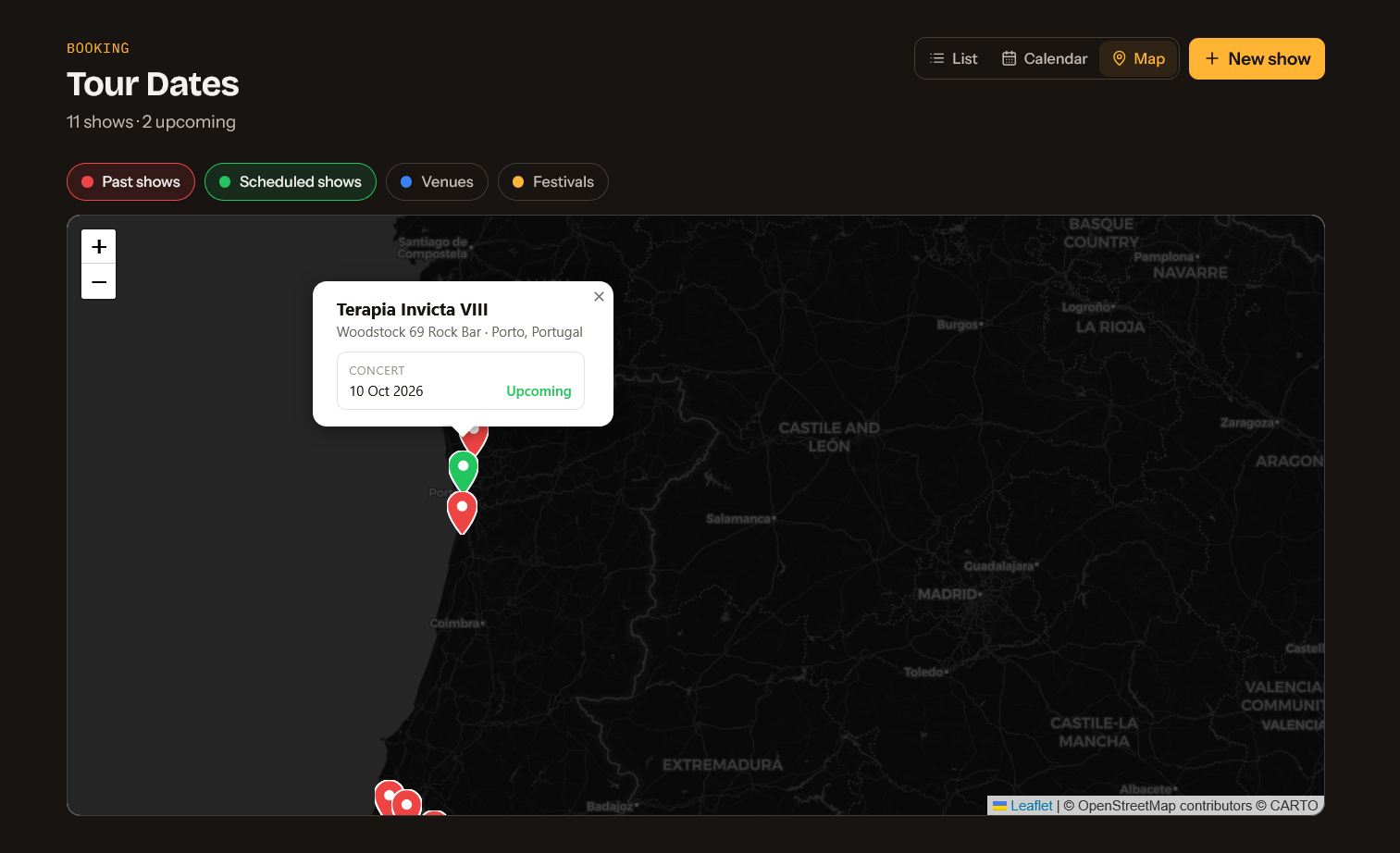
Records that sit on exactly the same coordinates — two stages at one site, or a venue and the festival it hosts — share a single pin carrying the count, and that pin's popup lists every one of them, each with a coloured dot for what it is, so nothing stays buried underneath another pin. This is true of every map in Booking: this one, the Concerts map and a tour's route map.
Labels
- Name (required), Country.
- Priority (genre-fit: High / Medium / Unknown), Accepts demos (yes/no), Submission method (Email or Form), Submission link.
- Email, Website, a Personalized pitch and Notes.
Press & Media
- Name (required) and Type (Radio, Magazine, Podcast, YouTube, Review blog, TV, Other — required).
- Country, City, Contacted (yes/no).
- Email, Website, Instagram, Facebook, YouTube.
- Language, Genre focus, Notes.
The shared venue directory
Venues & Festivals does not have to start empty. Every band on a Booking or Pro plan can open a shared directory of venues and festivals maintained by Band Social, search it, and copy what fits into its own list. The Directory button sits in the toolbar beside Import and Export, and it is the main action on the page while your list is still empty.
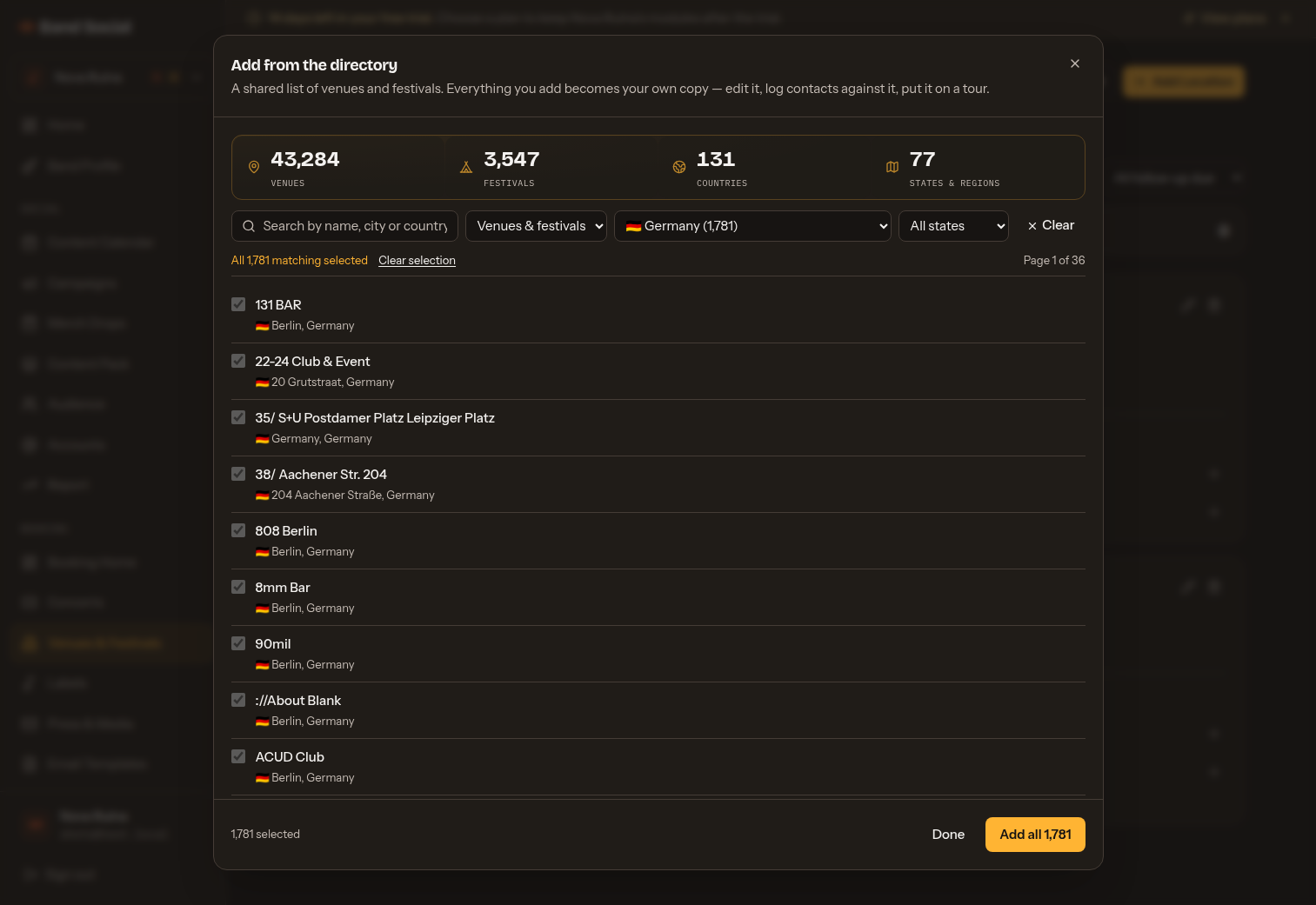
The directory is far too big to scroll, so it is a search tool first. Filter by text (name, city, state or country), kind (venues, festivals or both), country and then state or region. Countries are listed alphabetically, so you look yours up by name rather than hunting for it among the ones with the most entries. The count beside the buttons always says how many entries match right now.
Every entry can be contacted. The directory only lists places with a way in — an email address, a Facebook or Instagram profile, a website, a booking form or a phone number. A name with no route to anyone is not something you can act on. Places Band Social knows of but has no contact for are held back and added as contacts are found, so the directory grows over time without filling up with dead ends.
You can see the way in before you add anything. Each row carries a small icon for every contact route the entry actually has — website, Instagram, Facebook, email — and each one opens, so you can look a place over and decide whether it is worth a pitch. An entry with no icons still has a phone number or a booking form on the record you copy.
Adding entries. Tick individual rows and the button reads Add 3. To take a whole search rather than a page of it, use Select all N matching beside Select this page: every entry the filter matches is added, including the ones on pages you never opened. Adding is capped at 2,500 per click — if your filter matches more, you are told how many are left and can click again.
What you get is a copy, not a link. Each entry you add becomes your own venue record. Edit the notes, correct a contact, log interactions, set a follow-up, put it on a tour — all of it is yours, and none of it is visible to any other band.
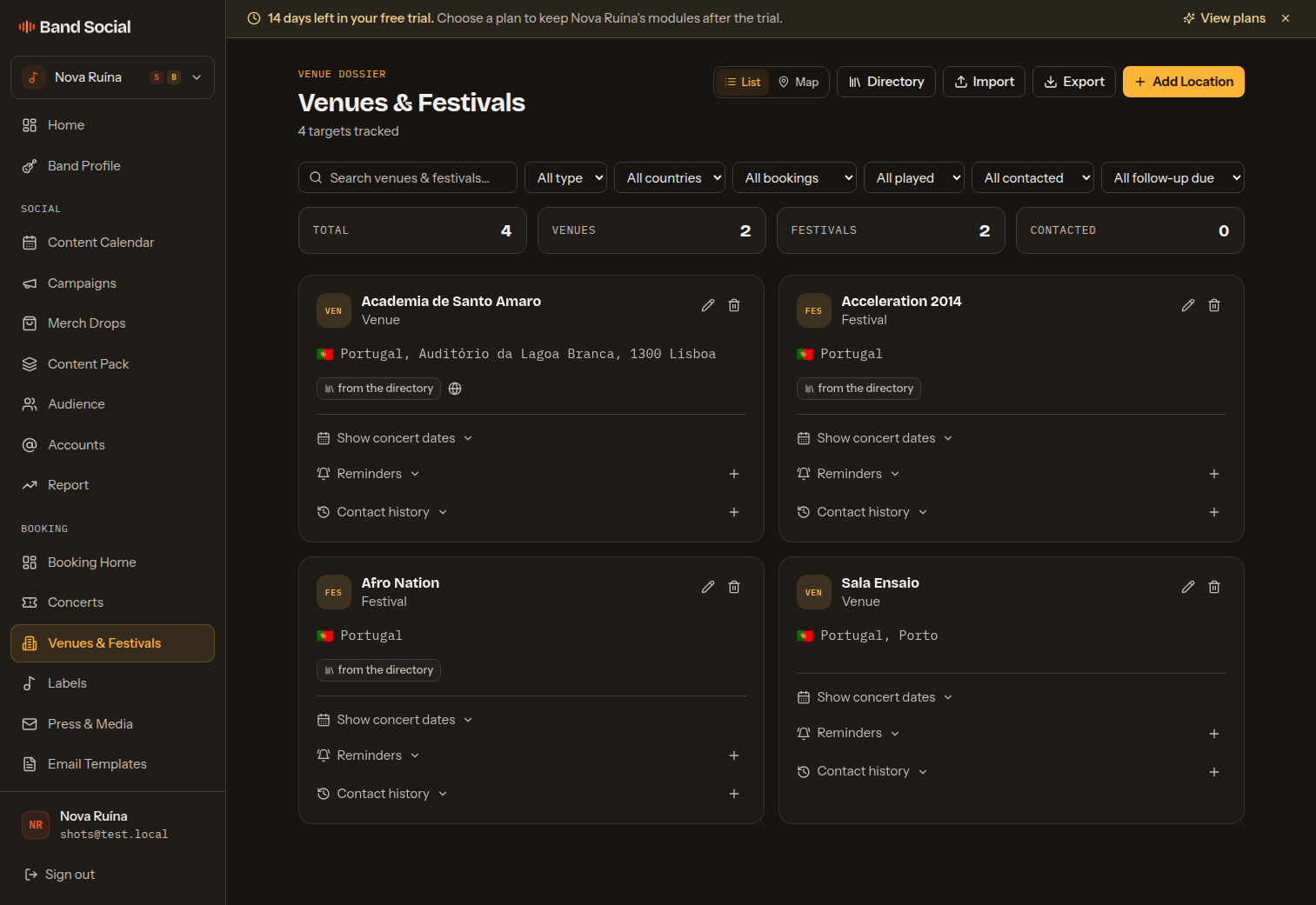
Copies are tagged from the directory on the card, and that tag is doing real work:
- You cannot end up with duplicates. Band Social remembers which directory entry each copy came from, so adding the same place again does nothing. Entries you already hold appear greyed out and ticked, so Select all N matching is safe over a search you have partly taken before.
- Your edits are never overwritten. When the directory is refreshed, the copies in your list stay exactly as you left them — a refresh changes what you find, never what you already took.
- Retiring an entry does not delete yours. If a place leaves the directory it stops appearing in searches, but your copy and its whole contact history stay.
Venues you add by hand or import from your own CSV are untagged and behave exactly as they always have; the directory never touches them.
Contact history
Every record has a contact-history timeline — open it from the History action on any row. Add an entry with a Type, a Method (Manual or Email), a Date and Notes. The available types are tailored to each directory — for example venues offer First contact, Booking inquiry, Follow-up, Show confirmed, Played and Rejected; labels add Demo sent, Meeting/call and Signed; press adds Pitch sent, Interview, Review and Feature. Sending an outreach email logs a history entry automatically.
Reminders (venues & festivals)
A venue rarely answers “yes” straight away — far more often it answers “we’re booked through the summer, get back to us in September”. Every venue and festival card has a Reminders section: set what to do, the day to be reminded, and notes on what they actually said.
On the morning it comes due you get one email per band — not one per reminder — listing everything that has come due with its venue, how late it is, your note and the venue’s booking address. An open reminder keeps appearing in the next day’s digest until you mark it done, and is never sent twice in the same day. A band with nothing due gets no email.
On the directory, a card with something waiting shows a follow-up due pill (gold on the day, red once it’s late), the stat strip gains a Follow-ups due count, and the Follow-up due filter narrows the list to the places that need you today.
CSV import & export
Each directory can bulk-import from a spreadsheet via the Import button. The header row must use the exact field names for that directory — the import dialog lists them and offers a template CSV to download. Unknown columns are ignored and any row missing a required field is skipped, and you get a summary of how many rows were imported, skipped or errored. Export writes the current (filtered) list back out to CSV.
Email templates
Email Templates are reusable outreach emails. Each template has a Name, a For target type (Any contact, Venues, Festivals, Labels, or Press & Media), a Language, a Subject and a Body. The body uses a built-in rich-text editor with bold, italic, underline, bulleted and numbered lists, links and a clear-formatting button — plus a menu to insert merge variables. A Preview with band data renders the template with your real details, and you can send yourself a test.
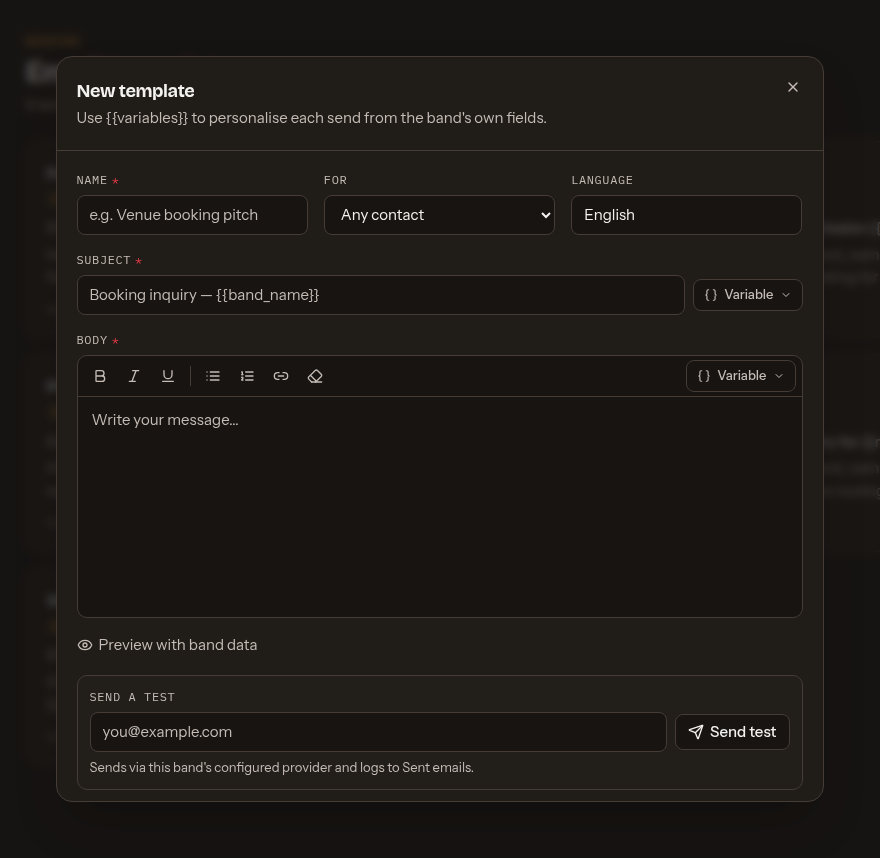
Merge variables
Merge variables are placeholders written as {{token}} that are filled in with real data when an email is sent — so a preview renders exactly what goes out. Any variable without a value is simply left blank. The full catalogue:
| Band Pulled from the band profile and Booking settings of the band you are sending from. |
|
| Links Pulled from your band links; the EPK link points at your public page. |
|
| Recipient The venue, label or press contact you are emailing. |
|
| Sender You — the person composing the email. |
|
Band variables come from the band profile and the Booking settings of the band you send from, so fill those in before sending. For example, a subject line might read Booking inquiry — {{band_name}}.
Sending outreach & the sent log
Send an email straight from a record's Send email action (or after previewing a template). Start from template searches your saved templates by name, language or subject line. In the compose dialog, Draft with AI writes the message for you from an optional one-line angle — a press pitch for media, a booking inquiry for venues, or a demo submission for labels — plus a few subject-line variants to choose from. Band Social substitutes the merge variables on the server, so what you preview is exactly what sends. Every send is recorded on the Sent Emails page — recipient, subject, a Delivered or Failed status, the date, and a view of the exact rendered content. Search by recipient or subject and filter by status. Sends are rate-limited per band to protect deliverability. See Booking settings for how outbound email is sent.
Concerts & map
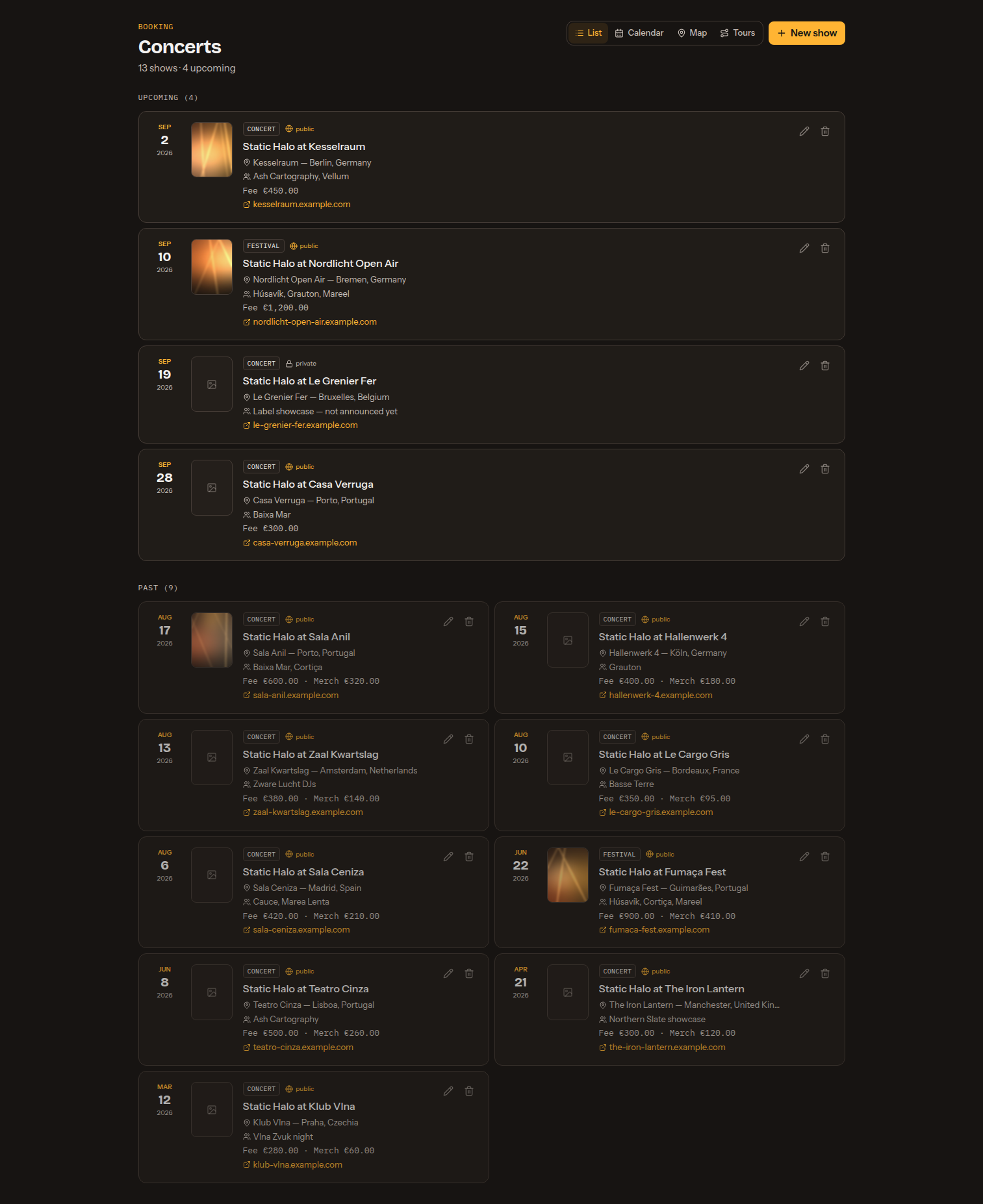
Concerts shows your shows as a List, a month Calendar, an interactive Map, or your Tours. A show has a Type (Concert or Festival), a Title, a Date (a show is a single day — no times), a Venue (start typing to search your saved venues and pick one to auto-fill the location, or just type a one-off name), a Location, a Fee (€), Merch sales (€), the other bands on the bill, a link, a cover image (the gig poster or artwork, shown on your public page), a Status (Upcoming, Completed or Cancelled), and an EPK visibility toggle — Public shows the date on your public page, Private keeps it internal.
Fee and merch sales are the money in; the Costs list right below them is the money out — add a line per cost with its category (Gas/fuel, Travel, Accommodation, Food, Gear, Other) and amount, and the dialog totals them and shows the net. Those lines are ordinary expenses linked to the show, so they also appear in Expenses and in the booking report.
The List shows each show's cover image beside its date. Everything upcoming is always listed in full; the past dates sit below it two to a row and are paged ten at a time, newest first. The Map plots your dates at the venue they play, in two independently toggleable, colour-coded layers — scheduled shows (green) and past shows (red), split by whether the date has happened yet — each with a matching filter label showing how many pins it holds. Both start lit. A show can only be placed when the venue it is booked at has coordinates. Two dates at the same address share one pin whose popup lists both, as on every Booking map. The places themselves live on their own map, in Venues & Festivals: this map is about dates, that one is about venues and festivals. Concerts are the same records as the events on your band profile and Social calendar.
Tours groups a run of dates under one name. Create a tour, give it a name, and tick the concerts that belong to it — the tour's start and end dates come from those concerts, so there is no separate window to keep up to date: move a date and the tour follows. The picker shows your scheduled dates first; Show past dates reveals the ones you have already played, so you can record a tour after the fact as easily as you plan one. (Editing a tour that already holds a past date opens with them showing, and a tour's own dates are always listed whether or not the toggle is on.) A date belongs to one tour at a time, and ticking one that is already on another tour moves it (the picker says which tour it is on). Opening a tour draws its dates on a map as numbered stops — 1, 2, 3… in date order, joined by a dashed line — and clicking a number opens the same popup a pin does anywhere else. Below the map, the same stops are listed in order, and any date whose venue has no coordinates is called out rather than quietly left off. Deleting a tour never deletes its dates; they simply stop belonging to a tour.
A tour can also carry a start point — where the van leaves from and comes back to, typed as a place (“Lisboa, Portugal”; a city and country is enough). Set one and the drive runs from there, out through every date, and home again, so the two longest legs of a run are in the totals instead of missing from them. It shows on the tour map as a cream pin the route line leaves from, and opens the route list above stop 1. Leave it empty and the drive runs from the first date to the last and back, as before. If the place can't be found you are told which words failed rather than left with a start point that quietly counts for nothing.
Each tour also carries the drive: kilometres and driving time going (out through every date, from your start point when you set one) and returning (the last date back to the start point, or to the first date without one), a total, and the same figures per leg under each stop. Toll roads are flagged — a leg says it has tolls and how much of it runs on them. It does not show what the tolls cost, because the routing service doesn't publish prices and we would rather say nothing than guess. The drive is worked out once per tour and kept: reopening a tour costs nothing, and it is only recalculated when you change the dates on it, move one of their venues or change the start point — or when you press Recalculate yourself. Dates whose venue has no coordinates are not part of it.
You don't have to open a tour to see the two figures a run is planned around: every card in the Tours list carries the drive under its dates — total kilometres · total drive time, read off the figure already stored for that tour, so the list itself costs no recalculation and shows exactly what the Total block inside the tour shows. A total the dates have moved past since it was worked out is still shown, marked out of date (opening the tour brings it up to date), rather than hidden; a tour that could be routed but never has says Drive not calculated yet; and a tour with too few placed dates to have a route at all shows no drive line.
Expenses
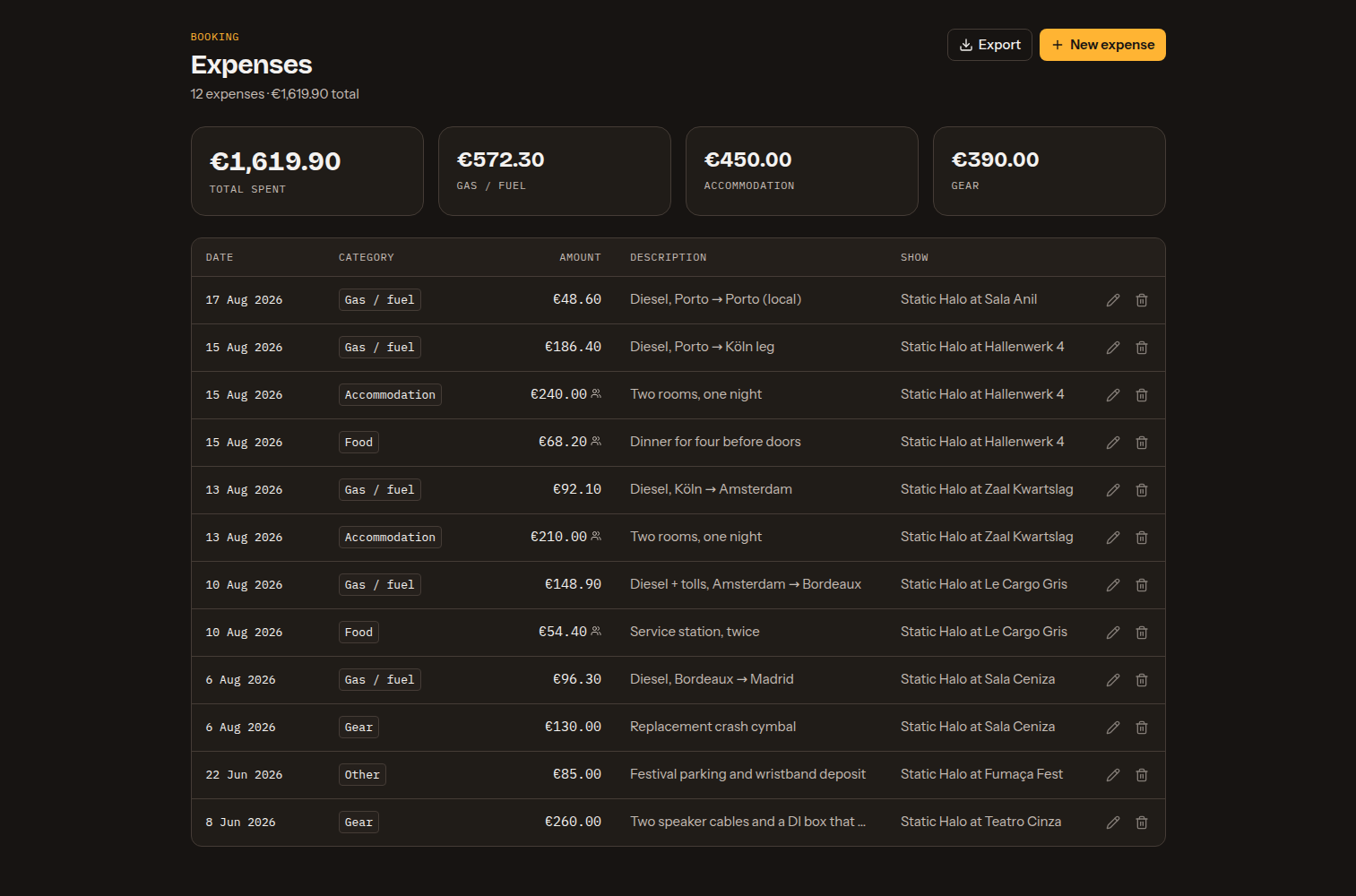
Expenses tracks tour and show costs. A summary shows your total spend and top categories, above a table of every expense. Each entry has a Category (Gas/fuel, Travel, Accommodation, Food, Gear, Other), an Amount (€), a Date, an optional linked show (start typing to search your shows by date, title, venue or city), a description, and an option to split between members — which shows the live per-member amount. Costs added straight from a concert land here too. Export to CSV for the accountant.
Booking reports
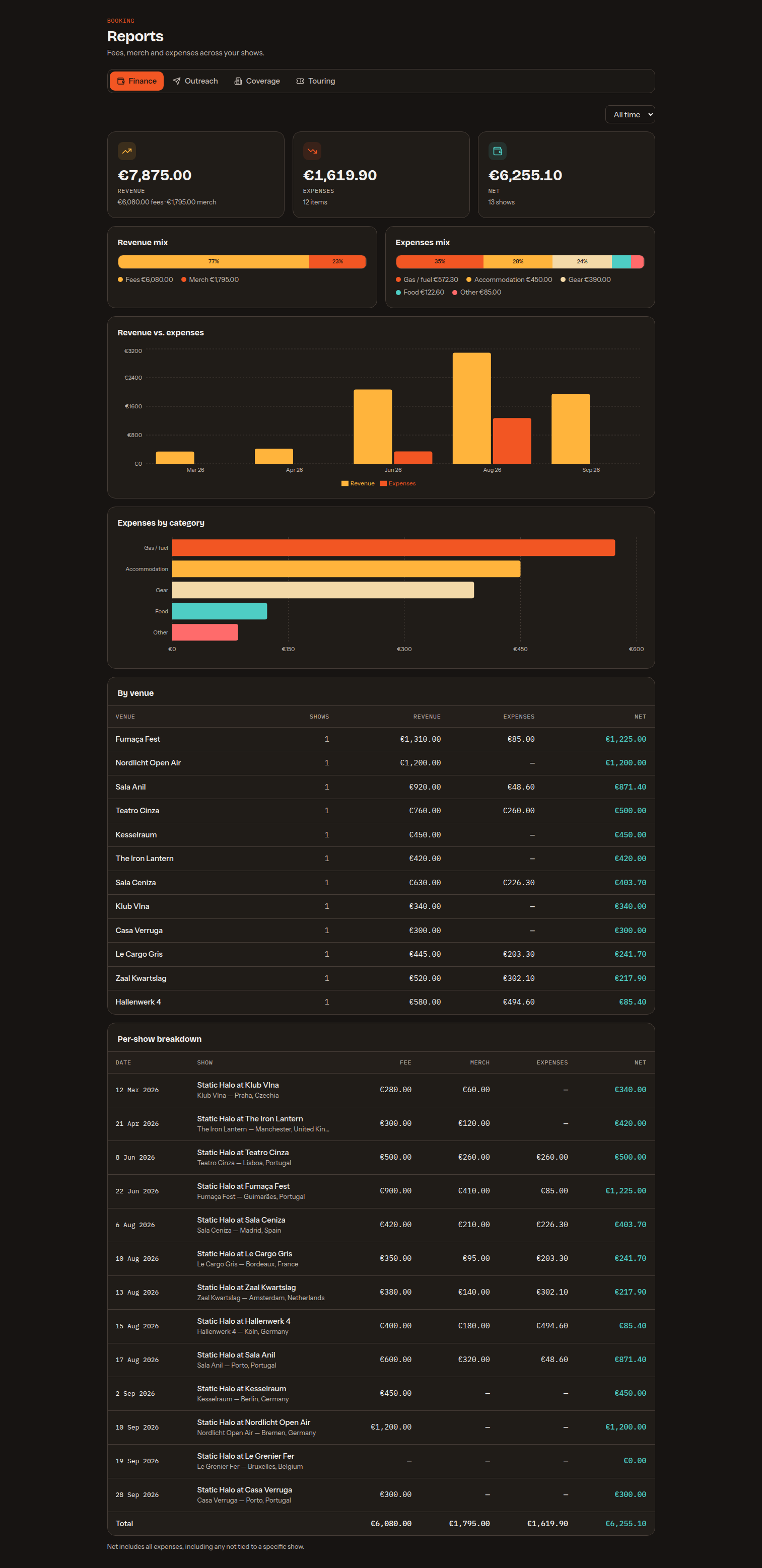
The Reports page is a tabbed hub, with a year picker (or all time) across all four tabs.
Finance
Rolls your fees, merch and expenses into a profit-and-loss view. Headline tiles show Revenue (fees + merch), Expenses and Net; charts break down revenue vs. expenses by month and expenses by category; and a per-show table lists fee, merch, expenses and net for each show with totals. It also surfaces your revenue mix (fees vs. merch) and your expenses mix (what share of your spend each category takes), a per-venue P&L, and year-over-year deltas — the numbers that tell you whether the tour actually paid.
Outreach
How your emailing is going: deliverability (volume and failure rate over time, by template) and your contact pipeline as a funnel per target type — plus a stale-follow-up action list of contacts worth chasing, each with the date you last made contact.
Coverage
How far you've worked each directory: contacted vs. total per directory, the untapped high-fit targets you haven't reached yet, and the by-country and by-type spread of your network.
Touring
The shape of your live activity: shows by city and country, your most-played venues, new-vs-repeat venues, average fee by market, and shows per year.
Booking settings & outreach email
Under Band Profile → Booking you set your booking contact & profile — contact person, booking email, city, country, formation year, number of members and a “sounds like” style blurb. These feed the email merge variables and your public EPK.
Below that, choose how outreach email is sent:
- Platform sender — sends through Band Social's shared mail server with nothing to configure; replies go to your booking email.
- Your own SMTP — send from your own mail server for full deliverability control. Enter the SMTP host, port, username and password, a from-email and from-name, and whether to use a secure (TLS/SSL) connection.