

Docs · Social
The Social module
Publish once to every platform, plan your content on a calendar, and run a press-ready public band page.
Dashboard
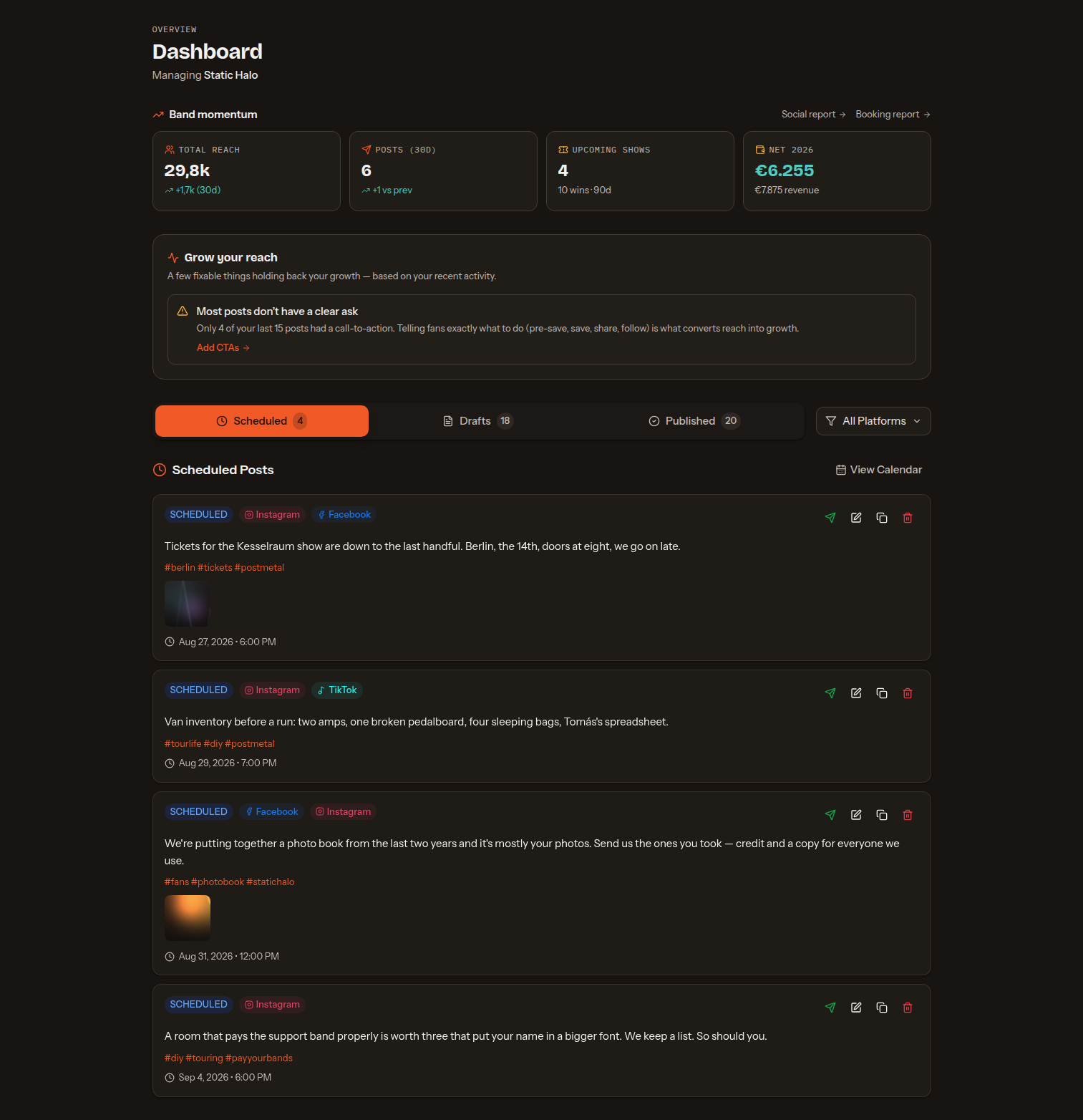
Your Home dashboard opens with a momentum strip — a compact row of headline numbers that adapts to the band's plan: reach and posting on Social, shows and net on Booking, or both on Pro. Below it is an overview of every post for the active band. Three status tabs — Scheduled, Drafts and Published — each show a live count, and an All Platforms filter narrows the list to a single network. Each post can be edited, duplicated, deleted or published immediately from its card. On the Published tab, every post shows a per-platform result — what went live (with a link) or the exact error if a platform failed — so nothing fails silently. A Grow your reach check-in also surfaces a few fixable issues (cadence, content variety, a missing call-to-action, flat followers), each linking straight to the fix.
Posts are grouped under day headers — Today, Tomorrow, Yesterday, then the weekday — and ordered by hour. Scheduled posts and drafts read forward in time, published posts newest first, and drafts with no date collect under No date set. Each network badge names the kind of post going out there (Post, Reel, Story, Short or Video). Click a thumbnail to open the photo or video full size, and step through the post's media with the arrows.
Duplicating a post
A post that worked is worth posting again. Duplicate makes a copy and opens it straight away, filled in exactly like the original — the same caption, hashtags, content pillar, media, accounts and per-platform options. It copies what is on screen, so a change you have not saved yet goes into the copy too, and the post you started from is left exactly as it was.
The copy is a draft with no date: a copy that kept the original's slot would send the same post twice in the same minute. Pick a new date and time, then Schedule post. You will find Duplicate inside the post itself, next to Delete, and on every post card on your dashboard.
Deleting a post
Deleting a post removes it from Band Social only. If it already went out, the real posts on your networks stay up — the confirmation lists exactly which networks those are, so you know what is being left behind before you confirm.
To take them down, delete them in each network's own app. Band Social can't do it for you: Instagram and TikTok give no way to delete a post through their APIs at all, and doing it for Facebook and YouTube alone would be a half-promise not worth making. Once the post is deleted here, Band Social no longer links to those posts, and the analytics it collected for them go with the post.
Create a post
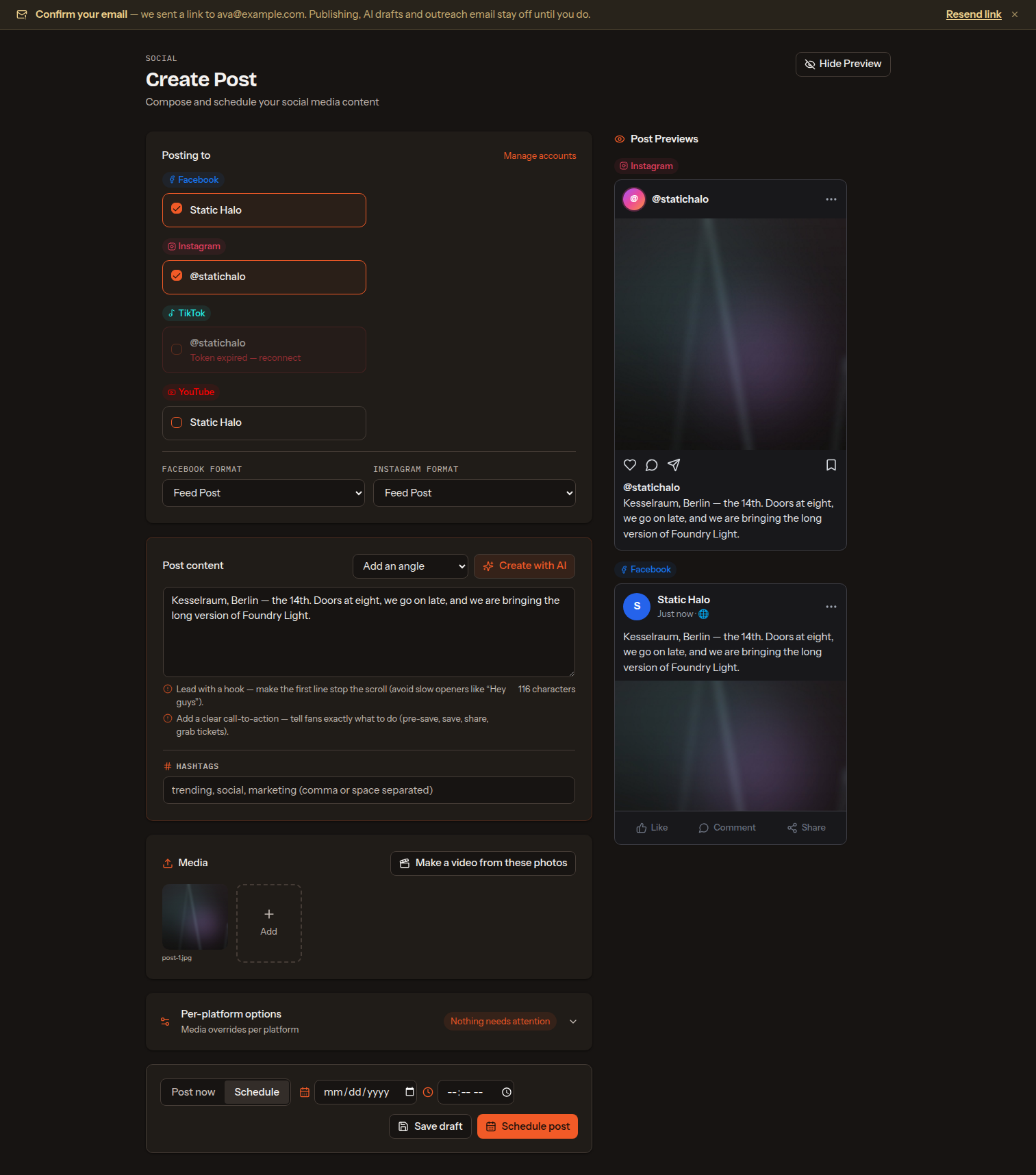
Create Post composes for several platforms at once, with a live preview beside the editor. Fields:
- Posting to — first, because everything below depends on it: tick the exact connected accounts to target, not just the platforms. If you have several Facebook Pages you choose which ones. Accounts with an expired token are disabled until you reconnect them. Each network's own options open directly beneath it as soon as you tick one of its accounts: a Format select on Facebook, Instagram and YouTube (a feed post, a Reel or a Story), and the TikTok posting options on TikTok.
- Post content — the text, sent to every account you select, with a live character count. This card also carries Create with AI (generate a caption from an optional brief; Style chips keep it hook-first and with a clear call-to-action, and the composer flags a caption missing either — non-Pro bands see what more Pro unlocks here), the optional Content pillar (behind-the-scenes, story, opinion, fan, educational, teaser — it steers AI generation and feeds the content-mix view in Reports), and Hashtags (separated by commas or spaces; they appear as chips and are appended to the post).
- Per-platform media — media overrides per platform, collapsed until something needs attention.
- TikTok options — shown under TikTok in Posting to when you target it: set who can see the post (Public, Friends or Only me — the options shown match what your account allows) and toggle whether comments, Duet and Stitch are permitted, as required by TikTok.
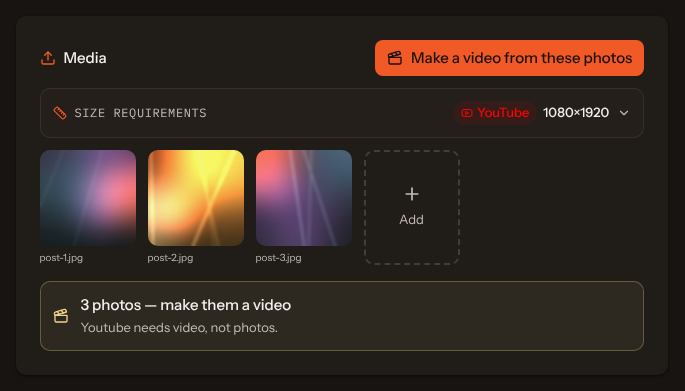
- Media — click to upload images or videos. Supported formats: JPG, PNG, GIF, MP4, MOV. A Size requirements panel at the top of the card shows the pixel size to export at for each platform you picked — Instagram’s feed wants 1080×1350 and rejects anything outside 4:5–1.91:1, Facebook’s rules are far looser — and opens to the full spec: formats, file-size caps, aspect ratios, minimum dimensions and video length. It follows the format chosen per platform, so picking Reel switches it to 1080×1920. Before the post is saved, Band Social validates each file against the requirements of every platform you selected — format, dimensions, aspect ratio and duration — so an invalid asset is caught up front rather than failing at publish time. Each file you add shows its own row while it goes up — name, size and a bar — above the upload area, and the percentage across the batch is weighed by size, so a half-sent video does not read as nearly done. A file that fails is only that file: the rest still land on the post, and the one that did not stays on the list with the reason until you dismiss it. Saving is refused while a file is still uploading, and says so — the file would otherwise be dropped from the post. Photos here can also become a video — see Video Studio below.
- When it goes out — a Post now / Schedule switch; in Schedule mode set the date and time.
Then choose an action: Save draft, or — depending on the switch — Schedule post (needs a date, time and at least one account) or Publish now.
What happens when you save. Saving a post is more than one step — the post is written, a video made in the Video Studio is attached to it, and Publish now then sends it to every account you ticked. A panel shows exactly the steps your save has (steps that don't apply are left out), which one is running and what each one did — Saving your post, Attaching your video, Publishing to 3 accounts. It can't be dismissed while it runs, because the post may already exist and the publish may already be in flight.
If a network refuses the post, that counts as a failure even when the others took it. The panel names each account that refused and stops there, with two ways on: Back to the post, with everything you wrote still in the form, or Open the calendar, where the post now sits. If the answer never reaches your browser — the connection drops, your phone changes network, the publish simply takes longer than the page waits — Band Social reads the post back and tells you what really happened on each account. On the rare occasion it still cannot tell, it says Still going out rather than claiming a failure, and points you at the post: publishing again would send the same thing twice. On success the composer closes and the content calendar opens on the post's own day, that day's panel open and the new post highlighted. A draft saved without a date lands on the calendar too — in the drafts list under the grid, scrolled into view and ringed, since with no date of any kind it belongs to no single day.
Opening a post you already saved gives you the same screen and the same switch. In Schedule it keeps the slot the post has, or moves it; in Post now the date and time give way to a line naming the accounts it is about to reach, and the button reads Publish now. Publishing from there saves your edits first, so what goes out is what you have on screen. It shows the same step-by-step panel as a new post while it goes out. Every post opens on Schedule, and a post that has already gone out has no switch at all — sending it again would be a second post, not that one. Use Duplicate when that is what you want.
Video Studio
TikTok and YouTube publish video only, so a post carrying nothing but photos cannot go out to them — and on Instagram a Reel travels further than a carousel. Video Studio turns the photos already on the post into a short video without leaving the composer. It lives in the Media card: once the post has photos you get Make a video from these photos, and when a video-only account is selected it says so rather than letting you find out at publish time.
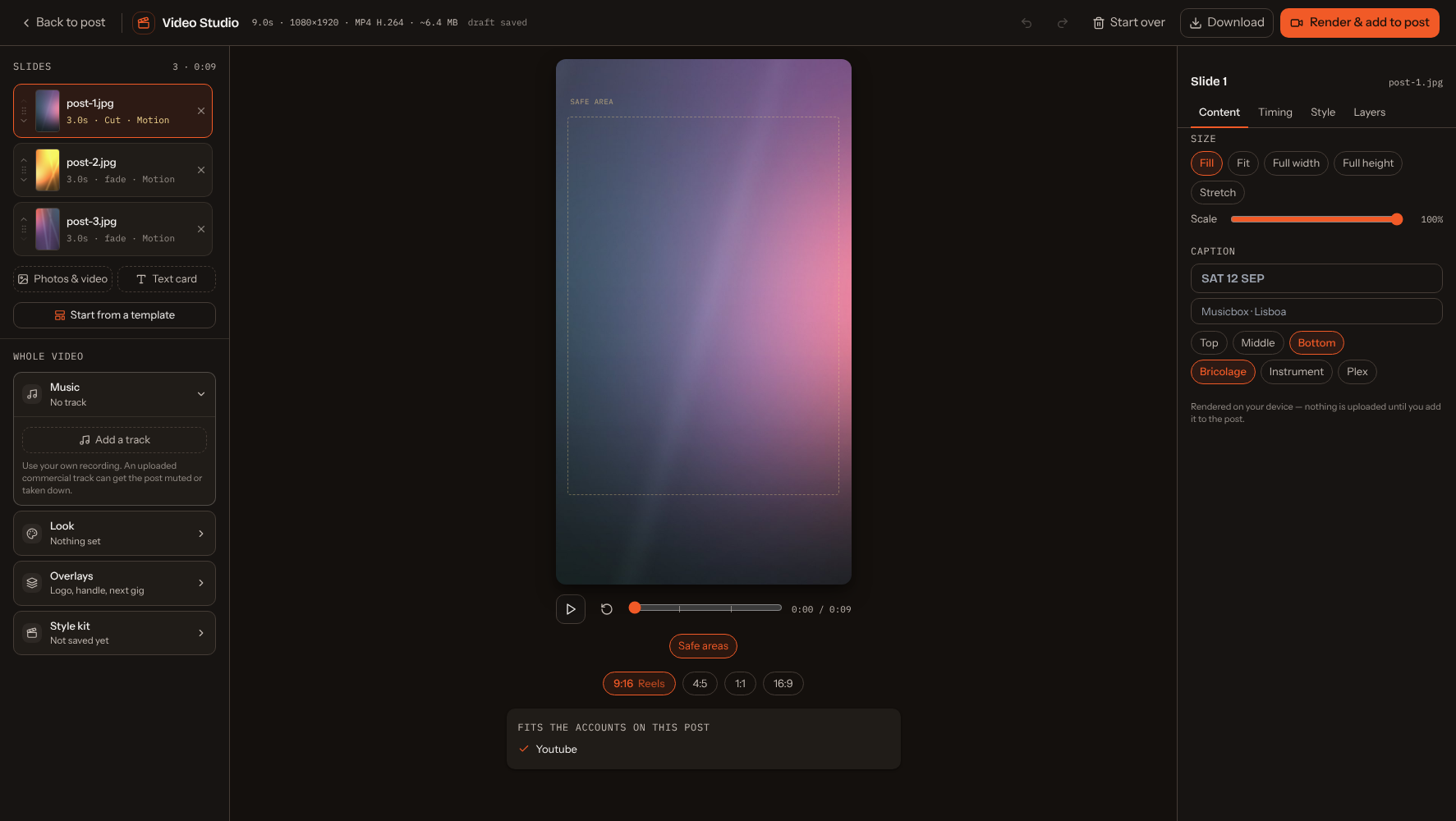
The studio opens over your draft, so nothing about the post is lost while you are in it.
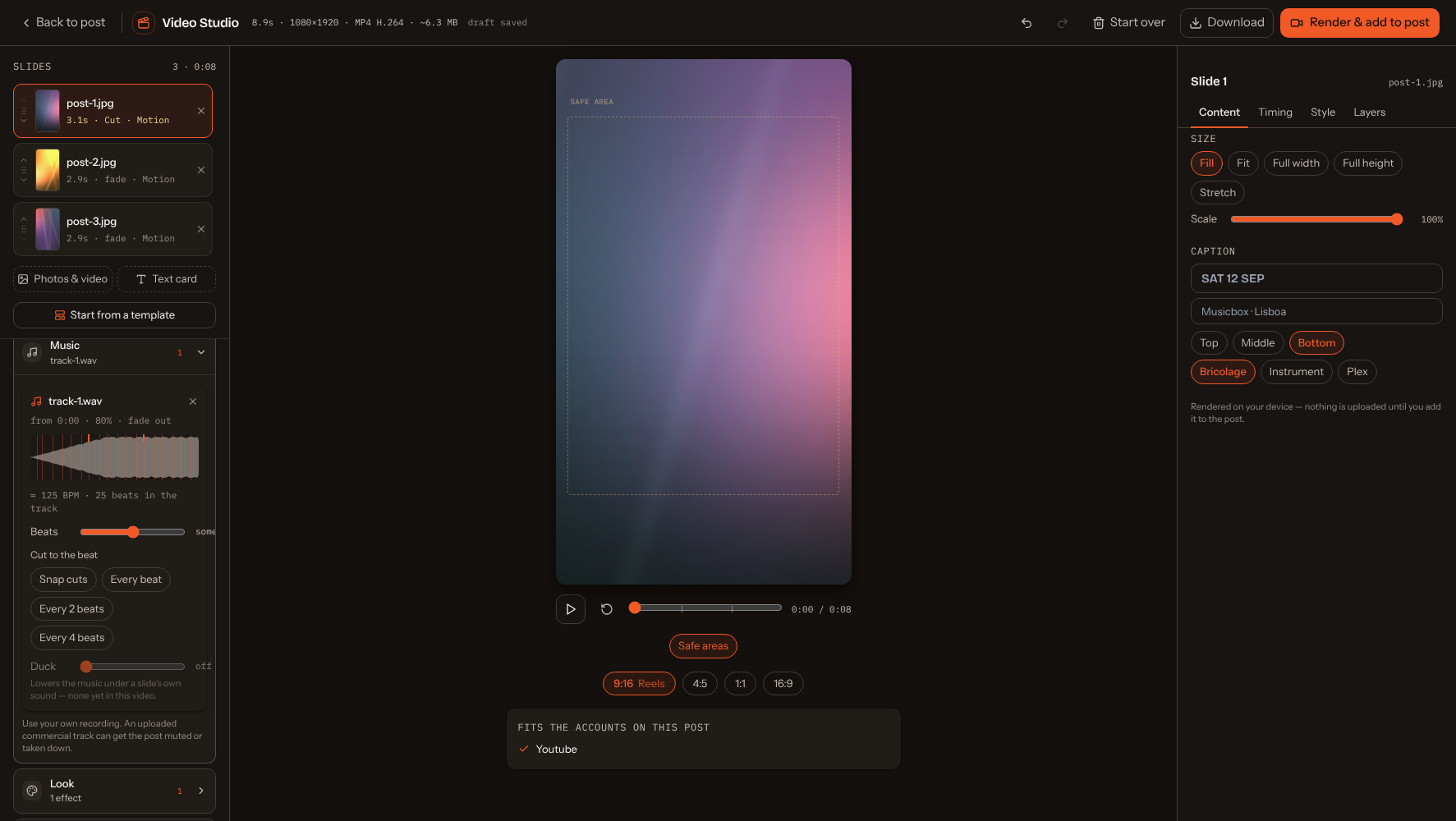
- Slides (top left) — every photo on the post, in order; reorder with the arrows, remove with ×, or add more. Photos & video takes stills and clips, and Text card adds a card you type instead of a photo. The list stays pinned at the top and scrolls on its own.
- The preview plays exactly what will be encoded. Safe areas marks the region TikTok and Instagram cover with their own buttons and captions — a guide only, never part of the video.
- Format — 9:16 for Reels, TikTok and Shorts; 4:5 or 1:1 for the feed; 16:9 for YouTube. It opens on the shape that suits the accounts you picked, always 1080px on the short side.
- Fits the accounts on this post — the same checks that run before publishing, applied to the video you are about to make.
- Whole video (left, under the slide list) — four sections for everything that applies to the whole video: Music, Look, Overlays and Style kit.
- The slide panel (right) — everything about the selected slide, in four tabs: Content, Timing, Style and Layers.
- Music (the Music section) — one track. Use your own recording: an uploaded commercial track can get the post muted or taken down.
Finding things. On the left, Music, Look, Overlays and Style kit are sections that open one at a time: click a heading to open it and the one that was open closes. Each heading shows a one-line summary of what is set and a small number when the section is in use, so you can see what the video carries without opening anything. Music is open the first time, and the studio remembers in this browser which one you left open. On the right, the slide panel has four tabs. Content is what the slide shows — a text card's text and kind, or a photo or clip's Size and Caption. Timing is how long it holds (or a clip's trim, speed and level), its own audio, the transition in, camera motion and Apply timing to all slides. Style is a card's ground or a photo's background, the look and this slide's effects. Layers holds the text and pictures on the slide, with a number on the tab when it has any. The tab you chose stays when you pick another slide, and on a desktop screen the heading and tabs stay in view while a long tab scrolls.
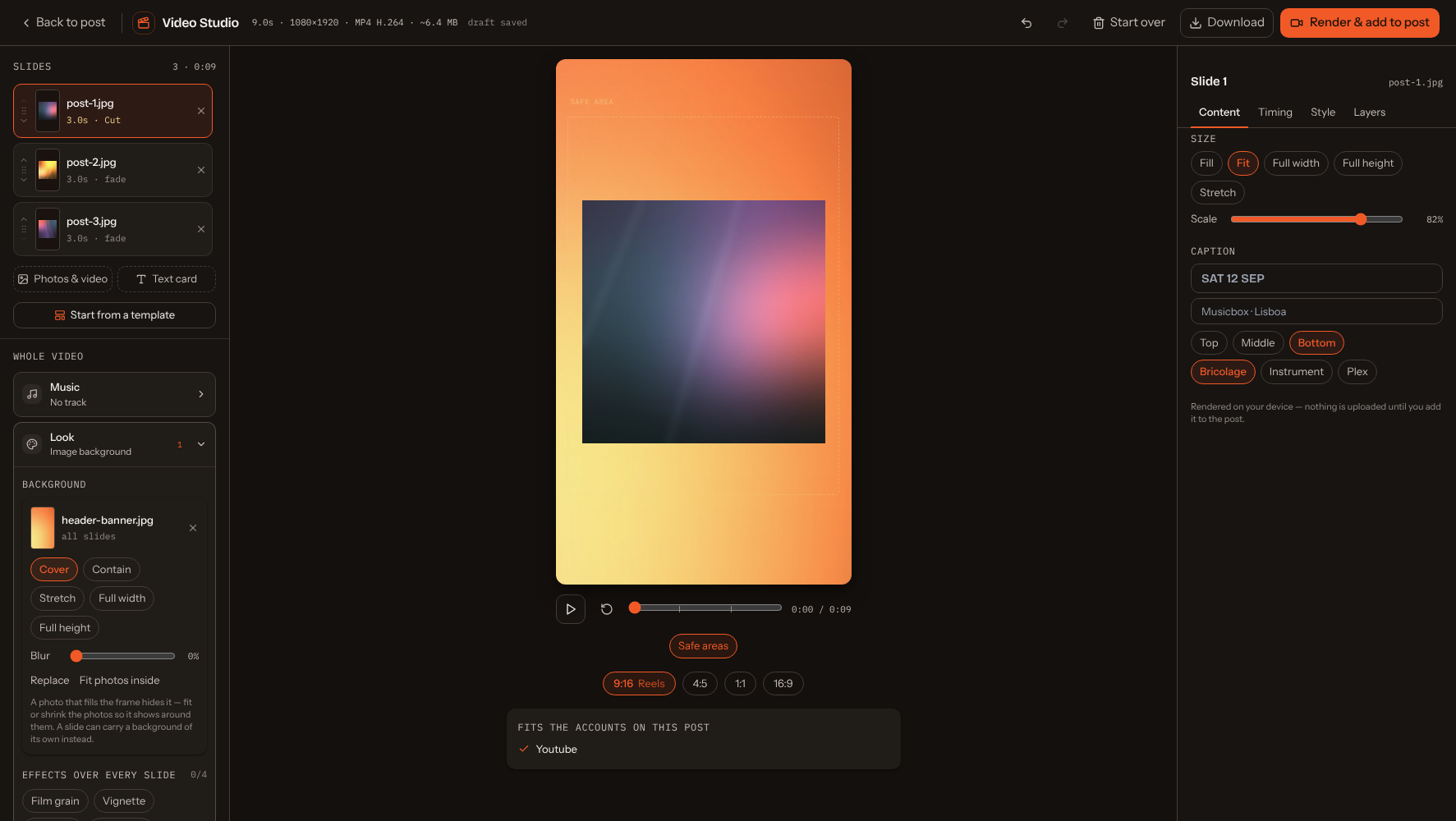
Size and background — a photo normally fills the frame and whatever does not fit is cropped. That is right for a photograph and wrong for artwork you built for a post: a square or 4:5 image dropped into a 9:16 Reel loses its sides, headline and all. So a photo slide has two controls of its own. Size (on the Content tab) is Fill (the frame, cropping what does not fit — the default, and what every slide did before), Fit (the whole image, with room left around it), Full width or Full height (pins one side and lets the other fall where it lands), or Stretch; beneath them Scale shrinks the image further, down to 20%, for a deliberate margin. Background (on the Style tab) is what fills the frame the image no longer covers: upload an image of your own and choose how it fills the frame, with a Blur slider to push it back behind the picture on top — or just pick a colour, your band's five offered as presets. So a post image goes into a Reel whole, on a background that fills the rest. Slow zoom drifts across the whole frame, background included, so it crops the edges of a fitted image — sizing an image down for the first time switches it off for you, and you can switch it back on if you want the drift anyway.
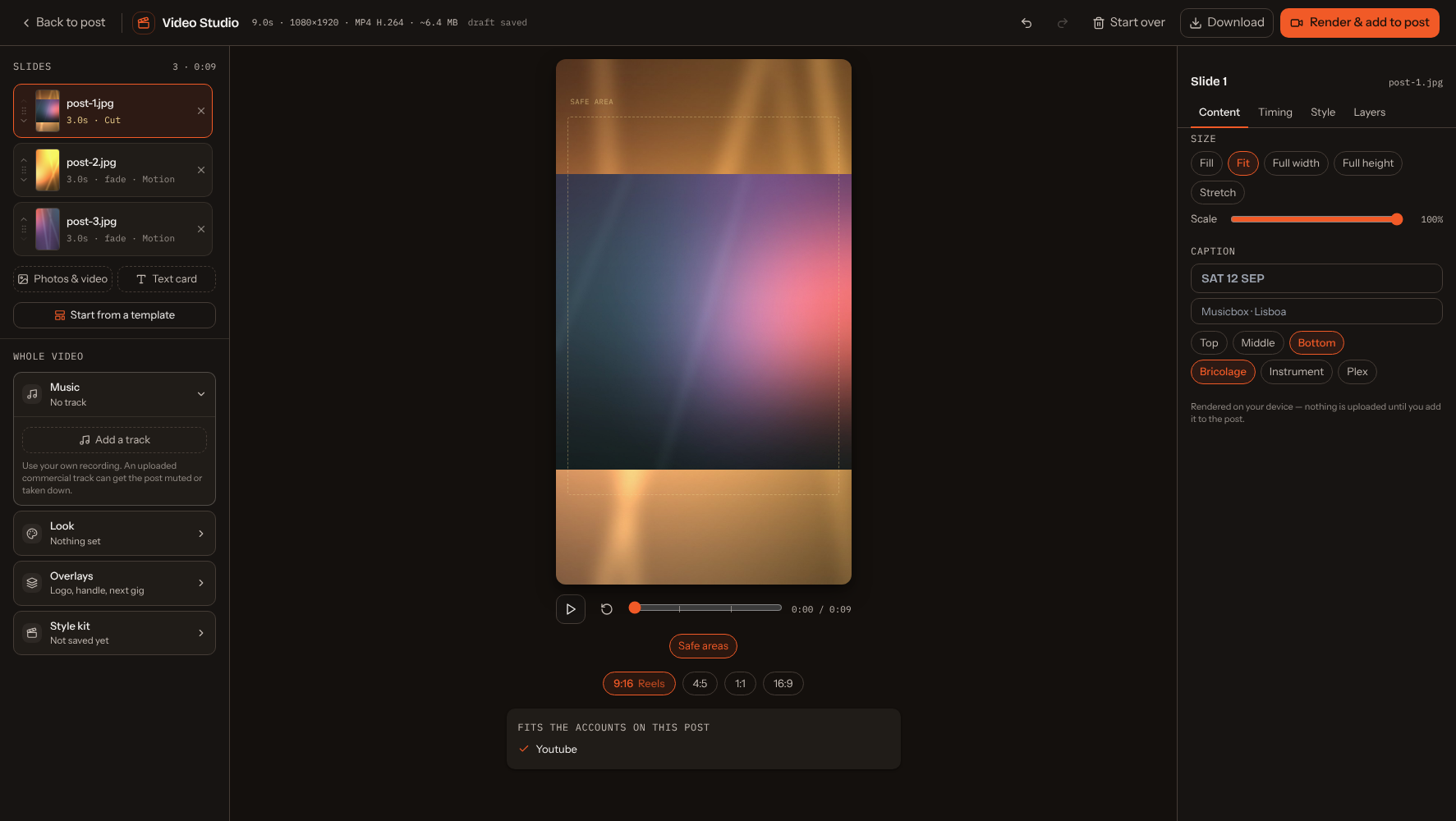
Camera motion — the switch on the Timing tab of the slide panel (it was called Slow zoom, and a video made with it on is unchanged). Choose Push in, Pull out or a Pan in any of four directions, and its pace — steady, smooth, slow start or slow end. Aim at a point lets you click the preview where a push should head, so the drift closes in on a face instead of cropping it. On a photo fitted inside the frame over a picture or video, Depth makes the background drift the other way, and slower, than the photo. A video clip has its own speed on the same tab (¼× to 4×), Reverse and Freeze; the slide's length is how long it runs in your video, and a reversed or frozen clip plays without its sound.
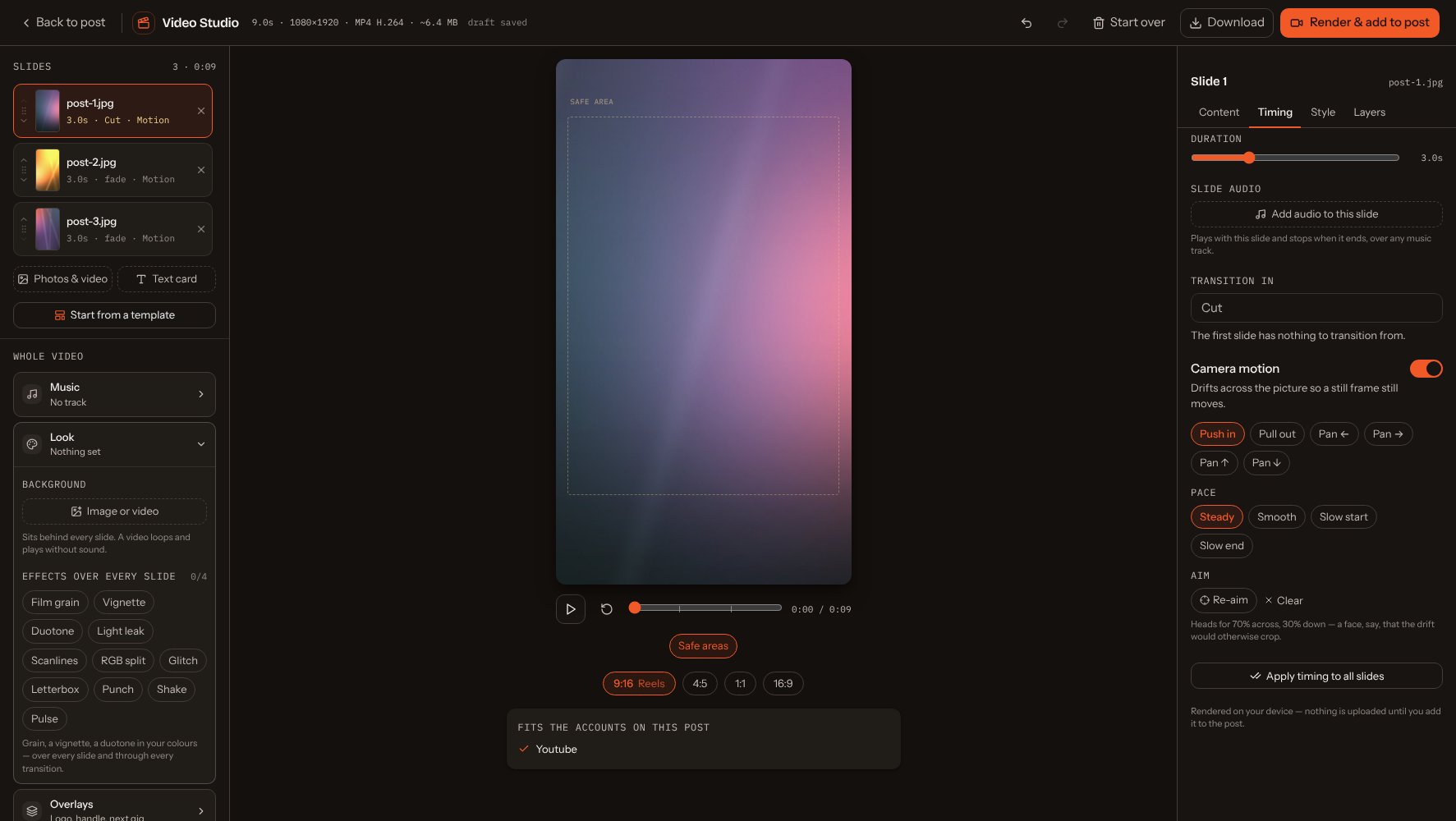
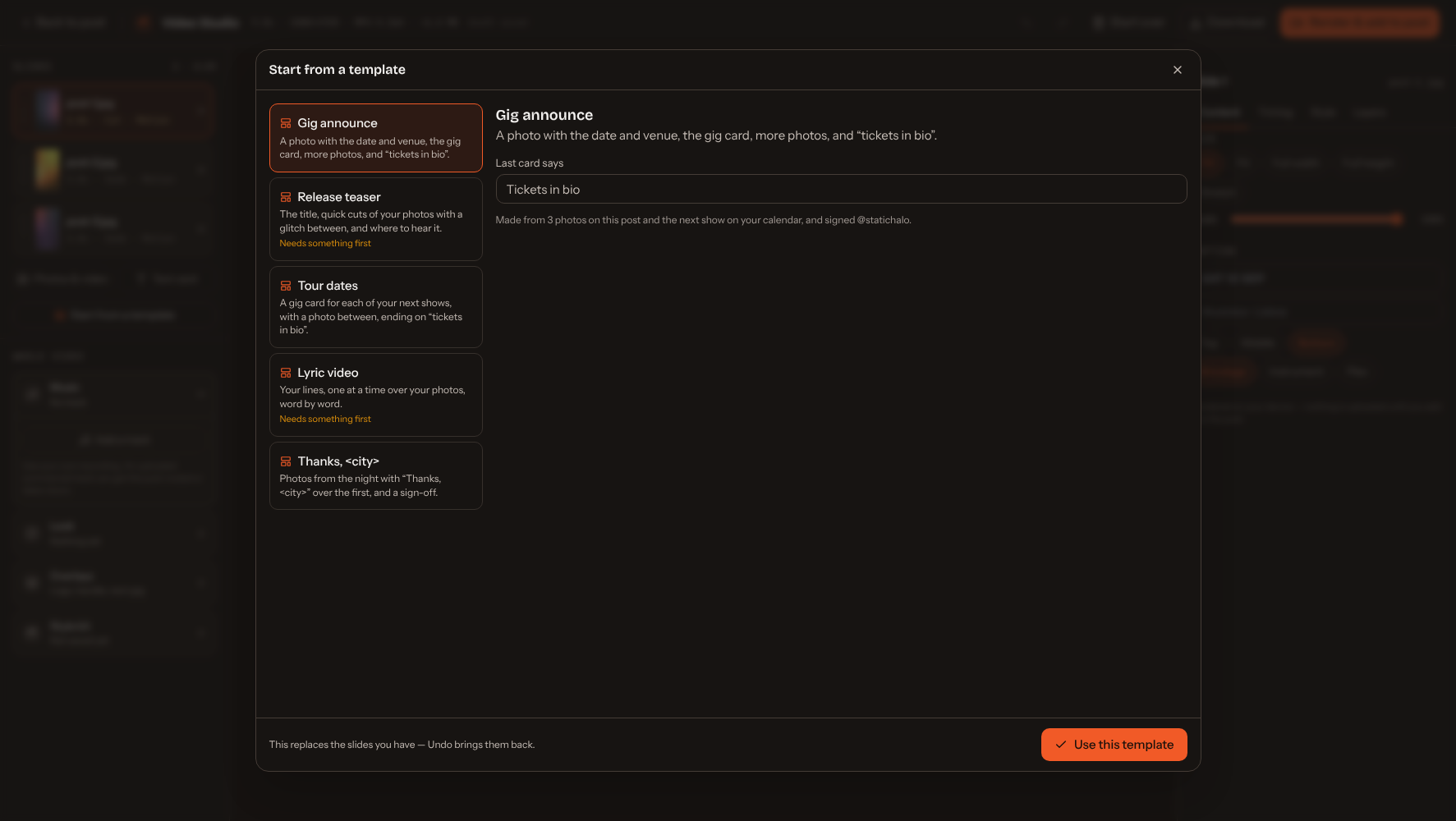
Start from a template — under the slide list, five starting points built from the photos on the post and your next show: Gig announce, Release teaser, Tour dates, Lyric video and Thanks, <city>. Where one needs something it hasn't got — a show, a title, lyrics — it says so. What it makes is ordinary slides and layers you can change, and Undo takes it back. In the Overlays section, From your calendar & links adds the next gig as a lower third, a Countdown that works itself out each day (“12 days to go”, “Tomorrow”, “Tonight”, then nothing), and a QR code for any link — dark on white with its margin so a phone can read it. Save this video's style in the Style kit section keeps its type, effects, transition, handle and logo as the band's style kit, which new videos and templates start in.
Carousels — for Instagram, the studio can make a carousel in which every slide is its own looping video. Choose Make this a carousel at the top of the Music section, or start from Motion carousel (a hook, one point per slide, a call to action) or Photo carousel (your photos in arches, circles and rounded frames). Each slide is a whole number of bars — 3 or 4 — at the tempo you set, so it loops without a jump. The soundtrack is a beat made on your device from a style and a variation; it is not AI and there is nothing to license, and each slide plays its own part of the same song. With your own track, set where bar 1 starts. Add a Traveler (a shape that crosses every slide) and a Beat ruler from the Overlays section, and use Swipe view under the preview to see the slides side by side. Render carousel makes one 4:5 video per slide and adds them to the post in order; rendering again replaces the whole set. Instagram crops every slide to the shape of the first, so keep them all 4:5. TikTok and YouTube take one clip, so a carousel only fits Instagram.
While it renders, the studio is locked. A full-screen panel with the animated Band Social mark, a progress bar and Cancel render covers it, and nothing underneath can be changed, so the video is exactly what was on screen when you pressed Render.
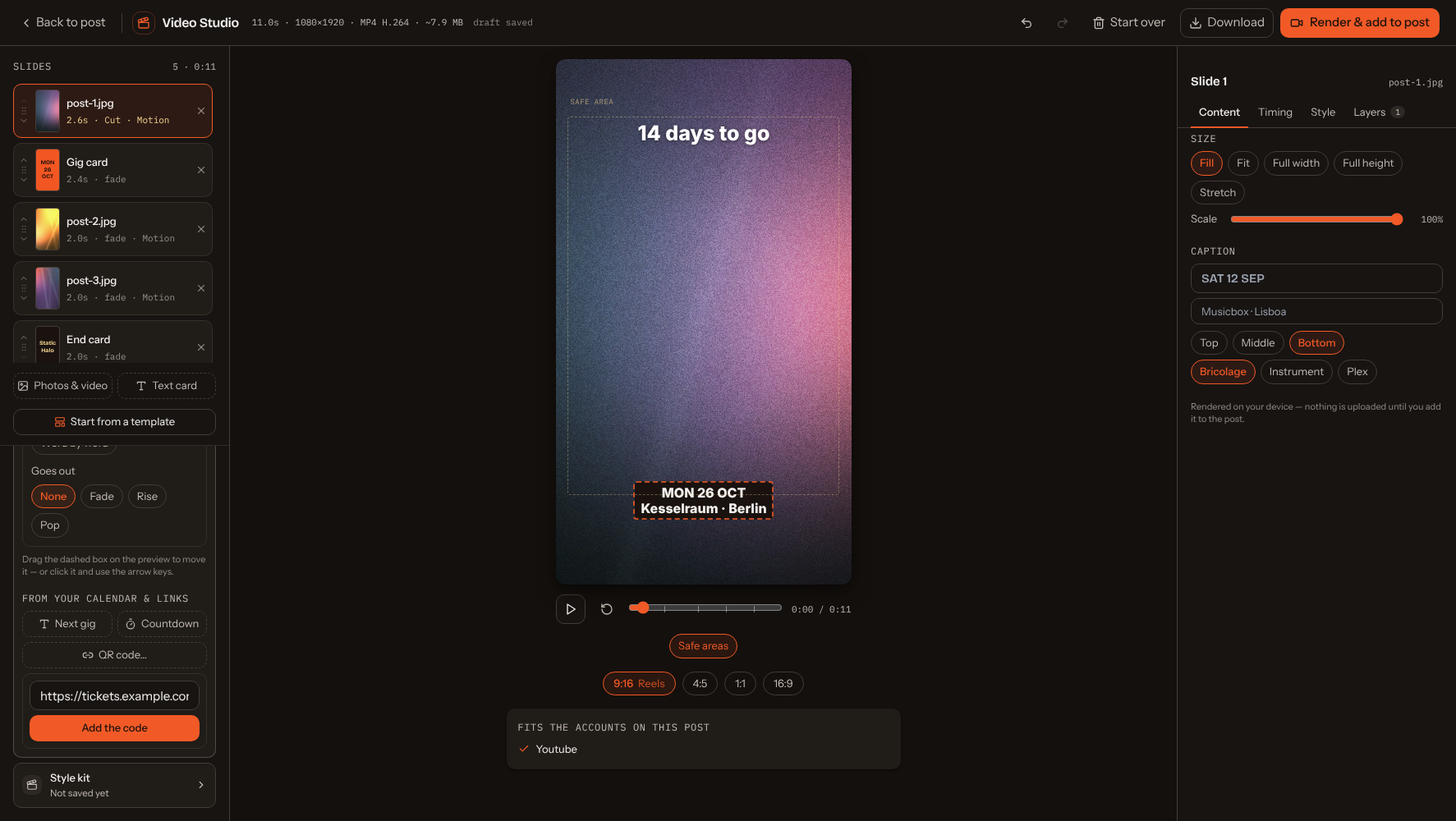
Music and beats — with a track under the video, the Music section draws it across the video with a faint line at every beat the studio hears and a tick wherever you cut, and shows the tempo. Snap cuts nudges each cut onto the nearest beat; Every beat, 2 beats and 4 beats make each photo and text card last that many (clips keep their length). Beats says how hard to listen — a track with no pulse says so rather than guessing. Punch, Shake and Pulse follow the beat, Bars draws the sound as bars, a line or a ring, and Duck lowers the music under a voice-over or a clip's own sound. Analysis happens in your browser and nothing but your settings is saved.
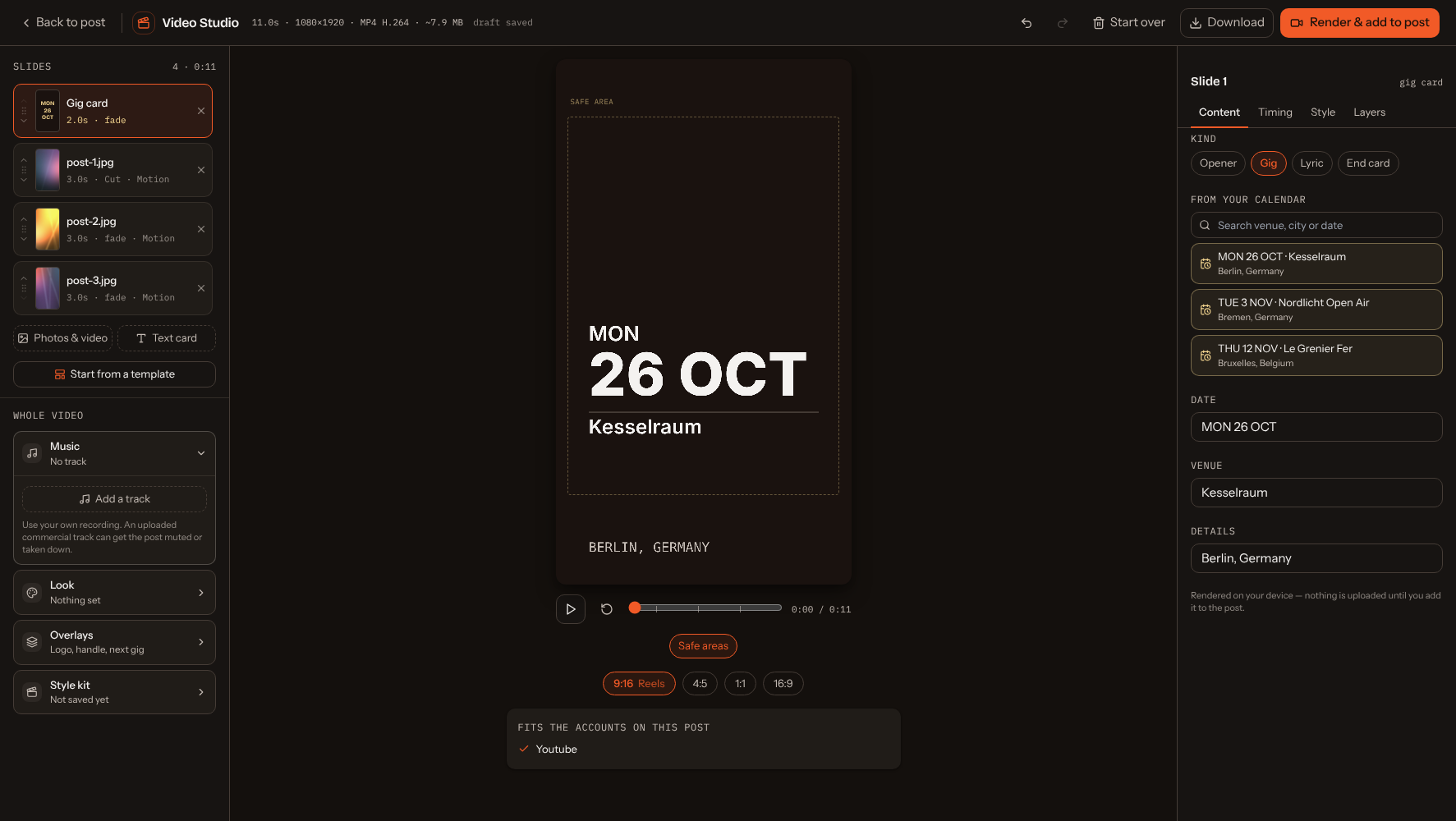
Text cards are typeset for you in the app's own fonts — an opener, a gig card, a lyric card and an end card. The gig card fills itself from your next scheduled concert and the end card takes your handle from your Instagram link; both stay editable, and the From your calendar list puts a show back if you change your mind.
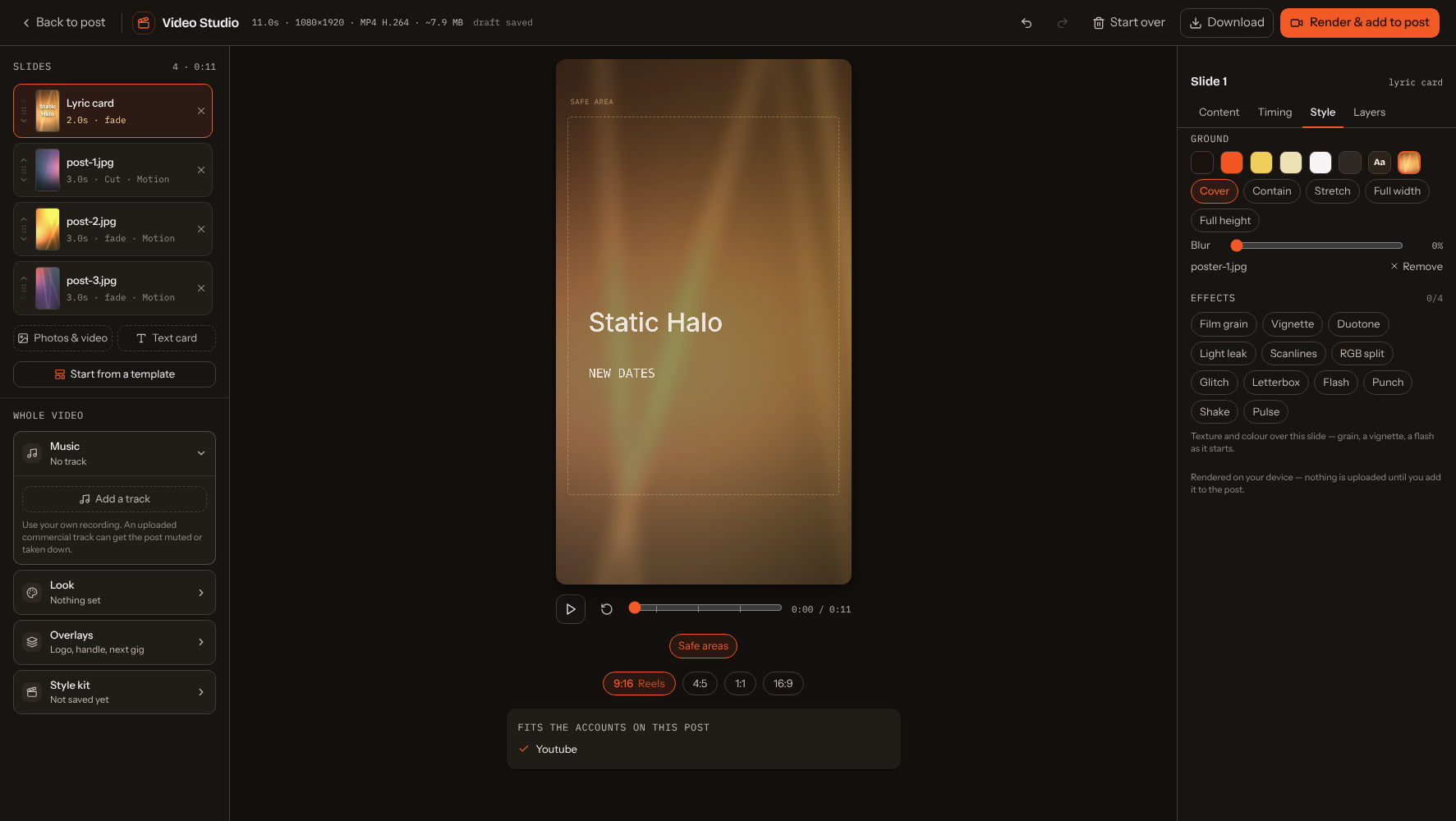
Ground (on the Style tab) is what a card sits on: one of your band's five colours — the swatch row is your own palette, set in your band profile under Band Voice → Video Colours, and if you never set it the app reads five colours off your logo, or picks five for your band when there is no logo to read. Change them later and every card you have already built follows, and saving them also dresses your public page in the same five — so you pick your colours once. Otherwise: the last photo blurred so a card grows out of the slide before it, any colour you like — the swatch marked Aa opens Band Social's own colour picker (a saturation square, a hue slider, a hex field, and your band's five colours as presets), and its letters show which ink the card will use, since the text flips light or dark to stay readable on whatever you pick — or a background image you upload for that card, with the text laid over it under just enough shade to stay legible.
A background image also chooses how it fills the frame — Cover (fills it, cropping what does not fit), Contain (the whole picture, the ground colour filling the rest), Stretch (fills it exactly, distorting), Full width or Full height (one side pinned to 100%, the other falling where it lands). A poster or a logo plate is rarely the shape of a Reel, and cropping it is usually the wrong answer.
Background for the whole video — Background, in the Look section on the left, sets one image or video behind every slide. A video background loops and plays without sound, so it never fights your music; it is held to its own length and starts over, however long the slides run. A slide can carry a background of its own instead, or switch the project's off with Show the project's image.
Text and picture layers — a slide can carry text and pictures of its own (on its Layers tab), and the Overlays section puts a few over the whole video: a logo in a corner, your handle, a watermark. Each has its size, position, tilt and fade, a from and until for when it is on screen, and a short entrance and exit. Drag it in the preview to place it and nudge it with the arrow keys.
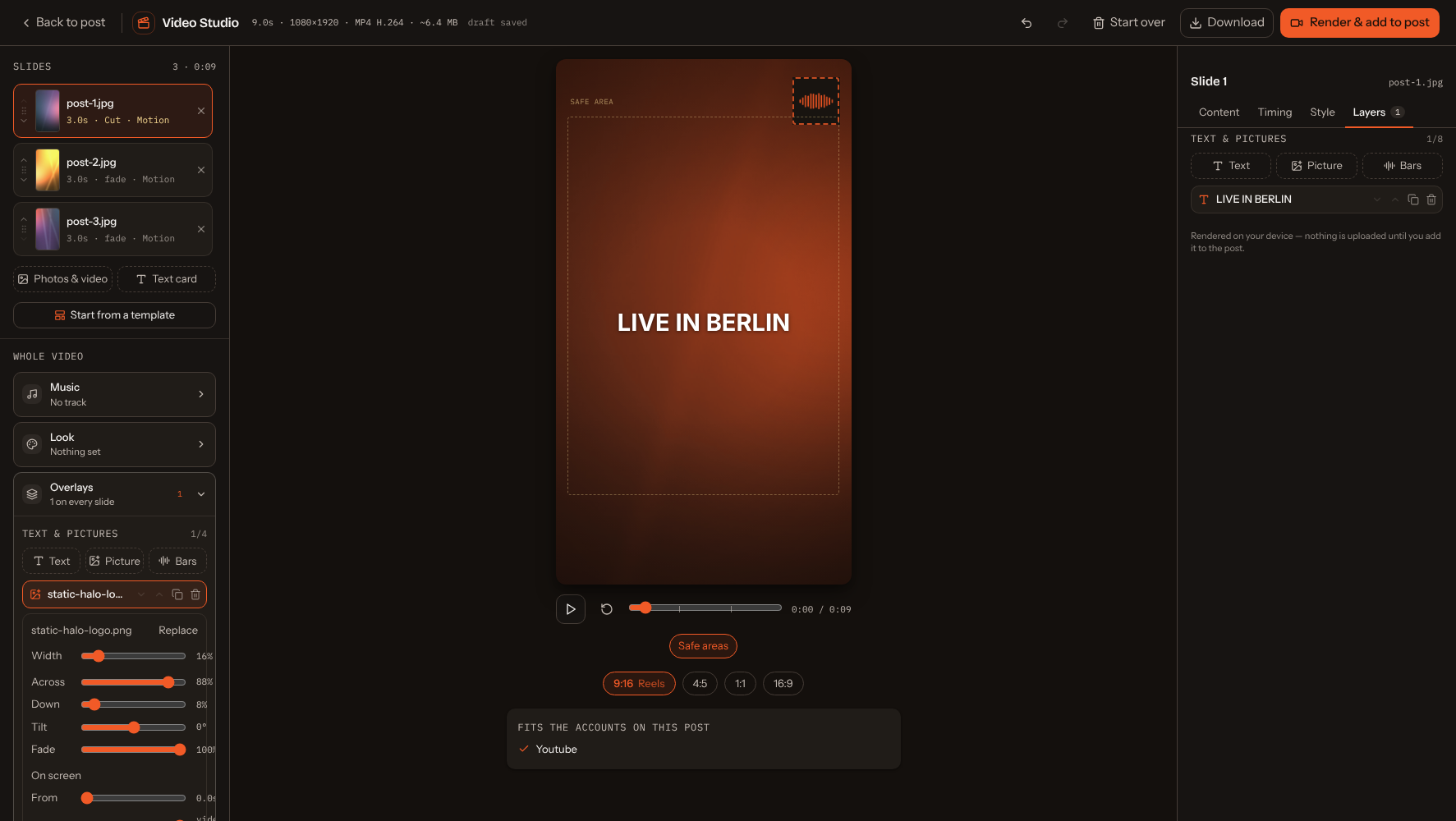
Effects, looks and transitions — the whole-video effects (in Look on the left) and each slide's own Effects (on its Style tab) add film grain, a vignette, a duotone and glitch. Looks (mono, warm, vintage, contrast) have an amount slider, and the transitions between slides now include a dip to a colour, a flash, a whip pan, a glitch and a wipe. Everything is drawn the same way in the preview and in the render, and works in Safari too.
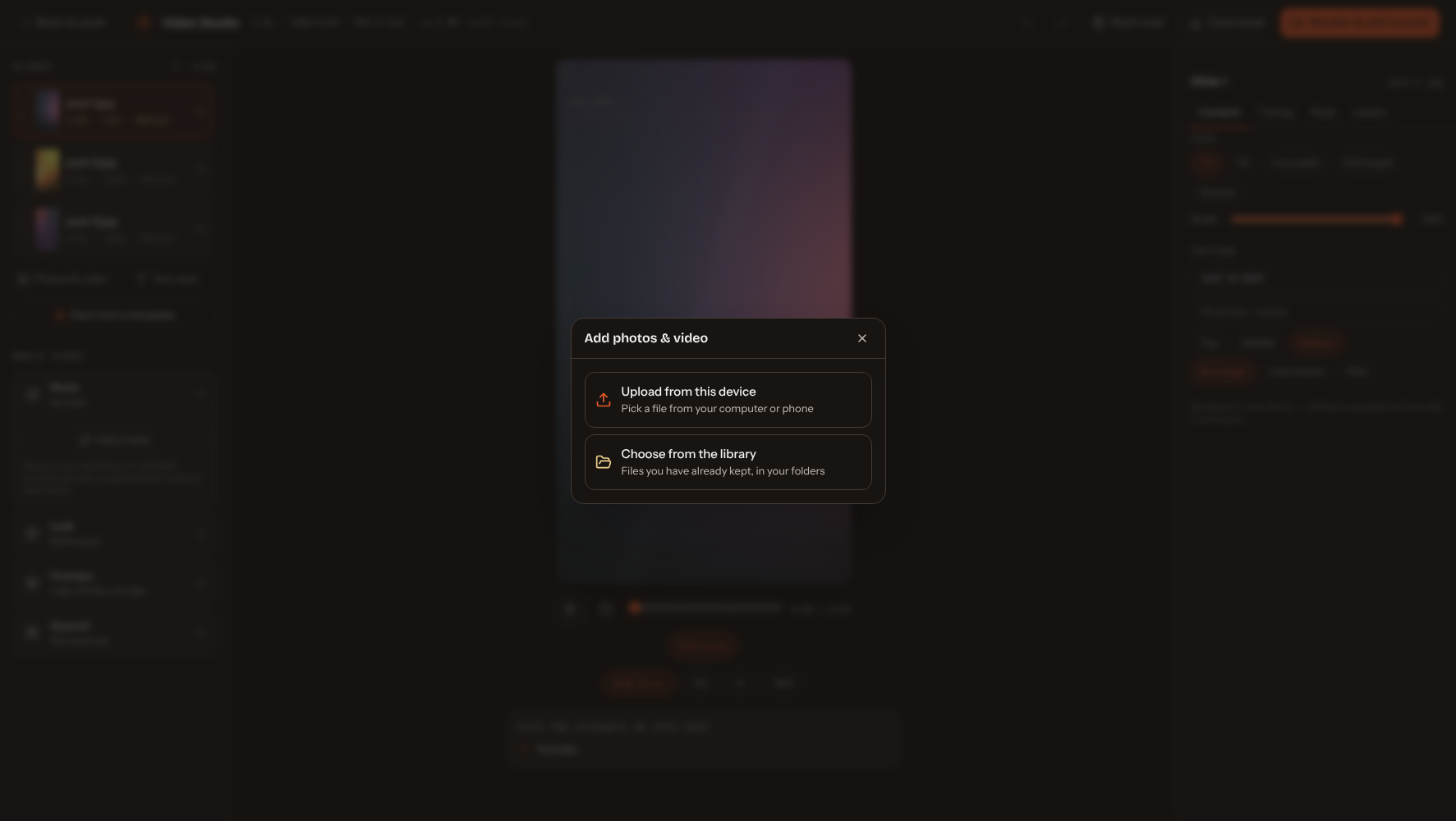
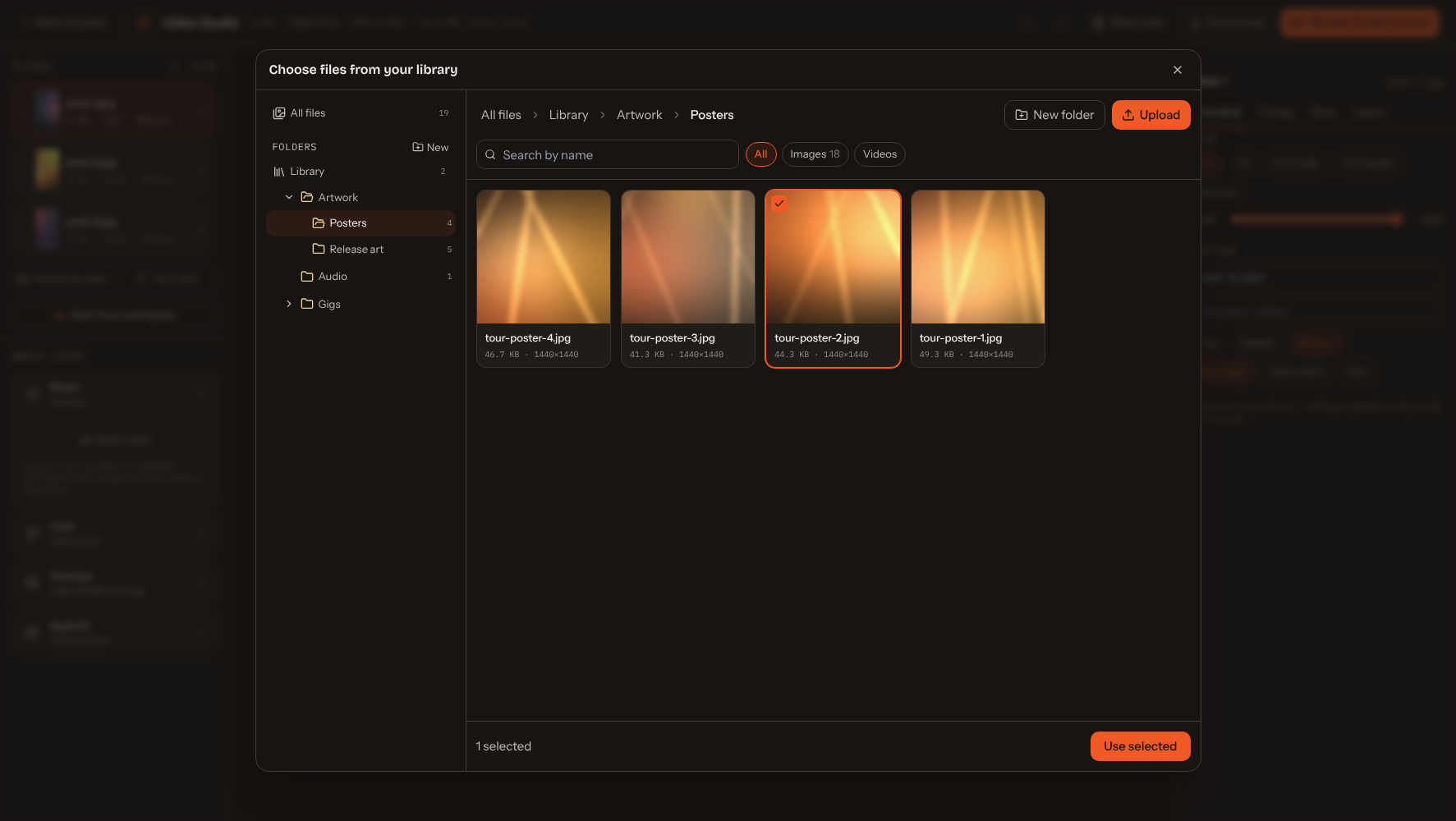
Upload, or pick from your Library — wherever the studio asks for a picture, a video or a sound, you choose between Upload from this device and Choose from the library. The library opens right there over the studio, folders on the left; pick one or several files and they come in without being uploaded again.
Undo and redo — the arrows at the top of the studio, or Ctrl/Cmd+Z and Shift+Ctrl/Cmd+Z (or Ctrl+Y), step back and forward through your changes. A slider or layer drag counts as one step, a text box keeps the browser's own undo for what you are typing, and a photo that has finished uploading stays uploaded however far you go back. The history lasts while the studio is open.
Render & add to post encodes the video on your own device — nothing is uploaded until it is done — and attaches it to the post like any other file. Editing it later reopens the same slides and replaces the video rather than adding a second one — from the composer, from a post you open again later, and from a copy made with Duplicate, which gets a video project of its own. Your work is saved as you go: close the studio or reload, and the Media card offers the unfinished video back — Pick up to carry on, or Discard to throw it away. Inside the studio, Start over clears the timeline and deletes the draft.
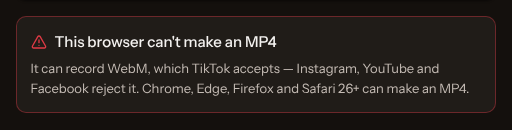
Instagram, YouTube and Facebook accept MP4 only, so that is what the studio makes — and Chrome, Edge, Firefox and Safari 26+ all produce one, on Windows, macOS and Linux alike. Your music travels with it everywhere: Firefox and desktop Linux have no built-in encoder for the soundtrack an MP4 carries, so the studio loads one the first time you render on them — a one-off download of about 600 KB onto your own machine, after which the file is the file Chrome would have made. Browsers with an encoder of their own never fetch it.
If that download can't arrive — you're offline, or something on the connection blocks it — the studio says so and makes the video without its music rather than failing outright; reload and render again to get the track back. On the rare browser that can't encode video at all, the studio says so before any time is spent rendering, instead of handing you a file that would be rejected on publishing.
Media Library
The Media Library (in the sidebar) is where a band keeps the pictures, video and audio it reuses — logos, posters, release art, a loop for the background. It belongs to the band, so everyone on it sees the same files, and the Video Studio picks from it directly.
- Folders and subfolders — the menu on the left is your tree. Make a folder with New, rename it, move it, and nest folders inside folders up to eight deep.
- Upload — add files to whichever folder is open. Images, video and audio up to 50 MB each; you can drop several at once.
- Find things — search by name, or narrow to Images, Videos or Audio.
- Tidy up — rename, move or delete a file, or select several and move or delete them together.
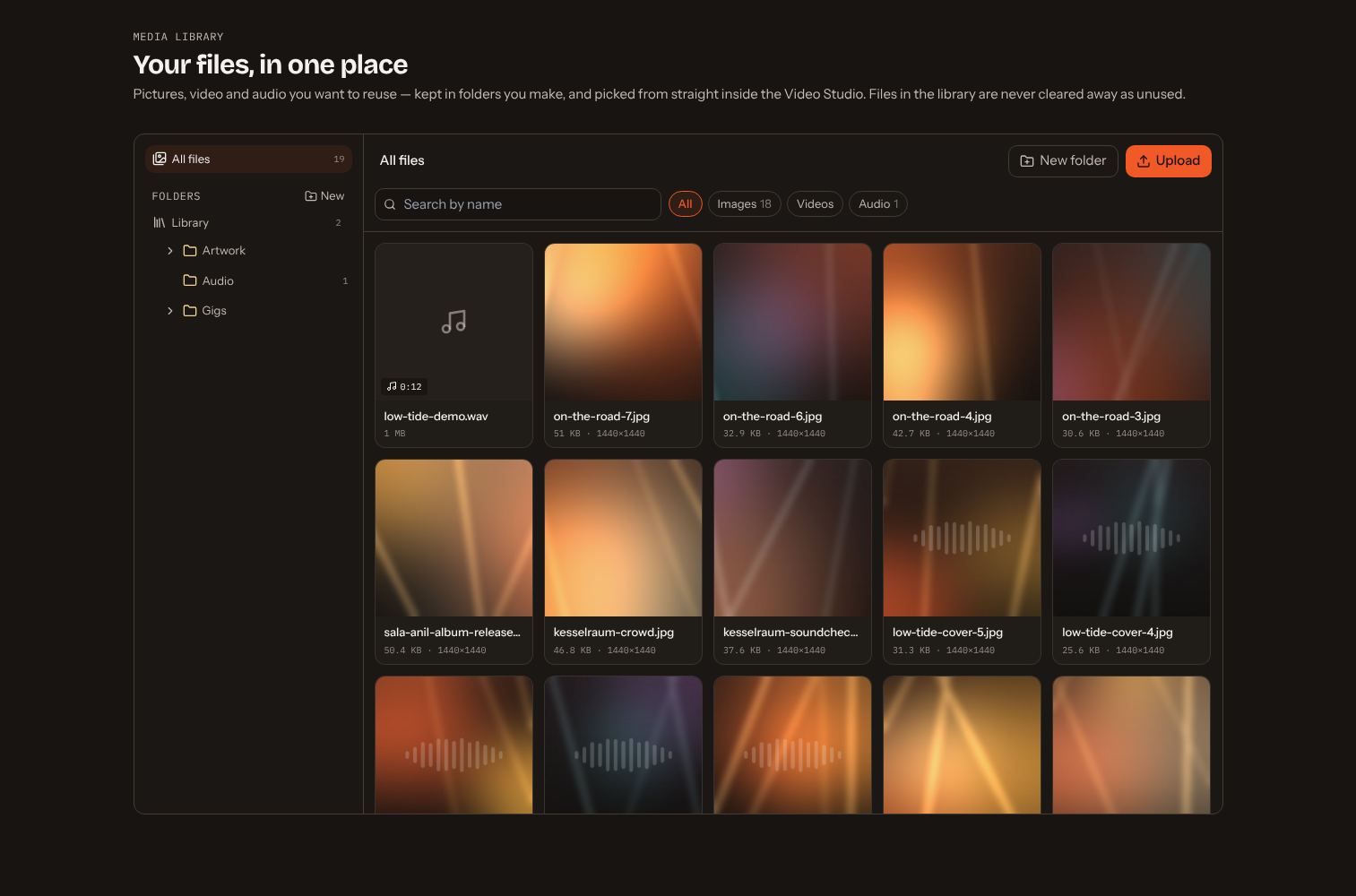
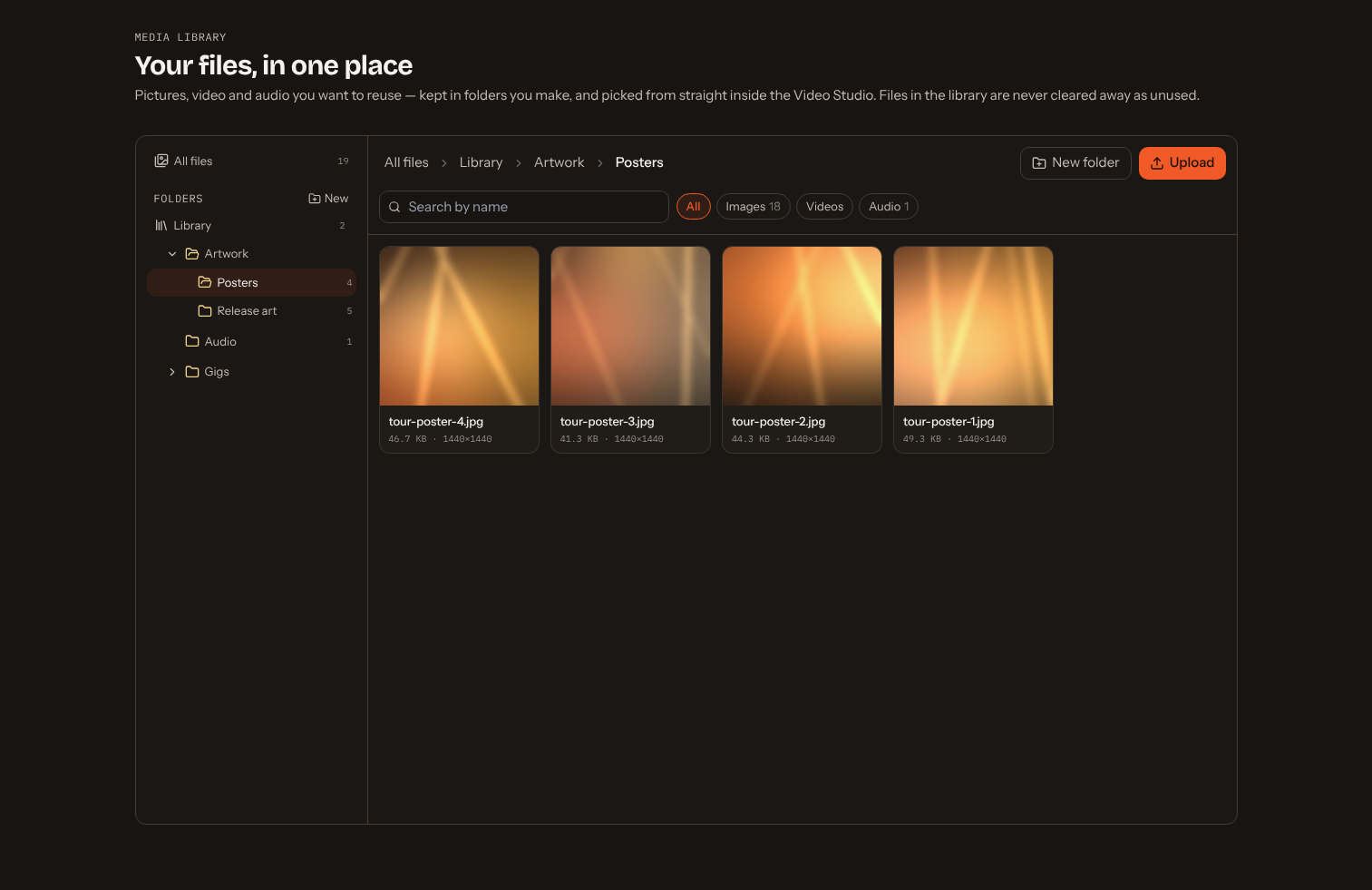
Files in the library are never cleared away as unused. Band Social normally removes uploads that no post, video or page uses; a file you put in the library stays until you delete it yourself. Deleting it from the library does not break a post or video that already uses it — that keeps its own copy.
Content calendar
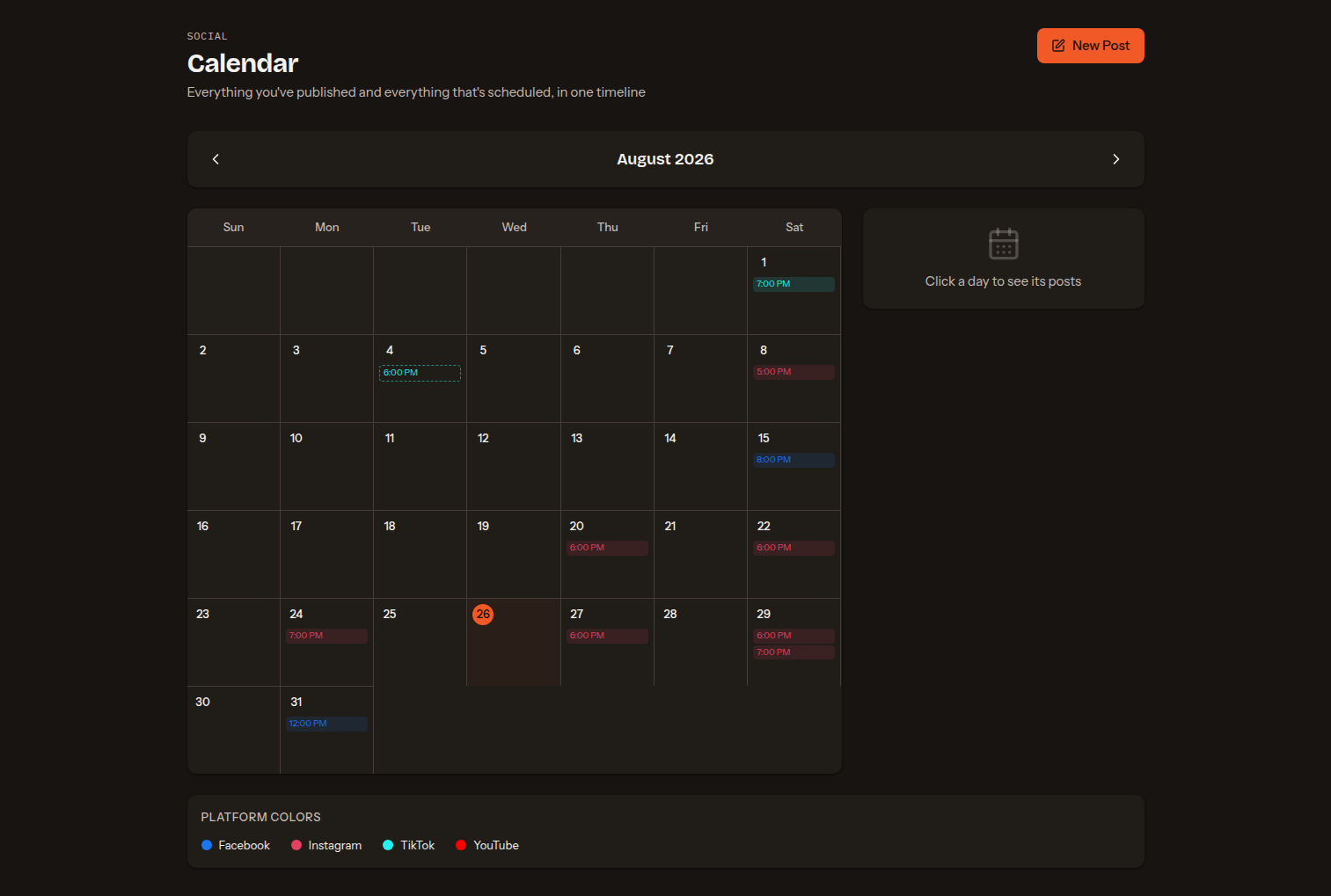
The Content Calendar is both your plan and your history for the active band, on a monthly grid. It shows the posts you've scheduled, the posts you've published — including the ones you fired off immediately without ever scheduling them — and the post history imported from your connected accounts. A scheduled post stays on the day you planned it for; anything else lands on the day it went live.
Drafts with no date are there too, in a list under the grid rather than in a day's square — a draft sitting in Tuesday's cell would read as scheduled for Tuesday. That list is month-independent, so it comes back whichever month you page to, most recently worked-on first; each card opens the post in the composer and offers the same Delete a day's panel does. Give a draft a date and it leaves the list for its day in the grid.
Days with posts show time chips colour-coded by platform; click a day to see that day's posts in a side panel with a content preview, and click a post you wrote here to open it in the composer. Imported posts are read-only — drawn with a dashed outline and tagged Imported, they open the original post on the platform in a new tab instead, since there's no draft to edit and deleting our copy wouldn't touch the platform. A legend maps each colour to its platform, and the arrows move between months. Each network badge in the day panel also says what is going out there — Instagram · Reel, YouTube · Short, Facebook · Story, TikTok · Video.
The calendar is a Social page for one band — the one in the band switcher — so switch bands to see another band's posts, and pick a band first if none is selected.
Campaigns
Campaigns turns a release date into a plan. Give it a name, a release date, an optional pre-save link and a template (full or lean); Band Social scaffolds the timeline as draft posts on your calendar — build-up → release day → roll-out — each pre-tagged with a content pillar and a starter brief. The campaign page groups the drafts by phase. Nothing publishes until you review and schedule them.
Merch Drops
Merch Drops works like Campaigns for merchandise. Enter the item, an optional price and shop link, and a drop date; Band Social scaffolds the announcement posts — teaser → drop day → last-chance — linking to your own store. It's a planner, not a storefront.
Content Pack (Pro)
Content Pack is a Pro feature for producing a month of content from one shoot. Set your 5×5×5 shoot plan (songs × locations × outfits × cuts) to see how many pieces one day yields, then generate a batch of varied draft posts spread across your content pillars, added to your calendar. Available once per calendar month.
Audience
The Audience page is your owned email list. Fans subscribe from the signup form on your public band page (with consent); their emails collect here and you can export to CSV for any email tool — an audience independent of any platform's algorithm.
Connected accounts
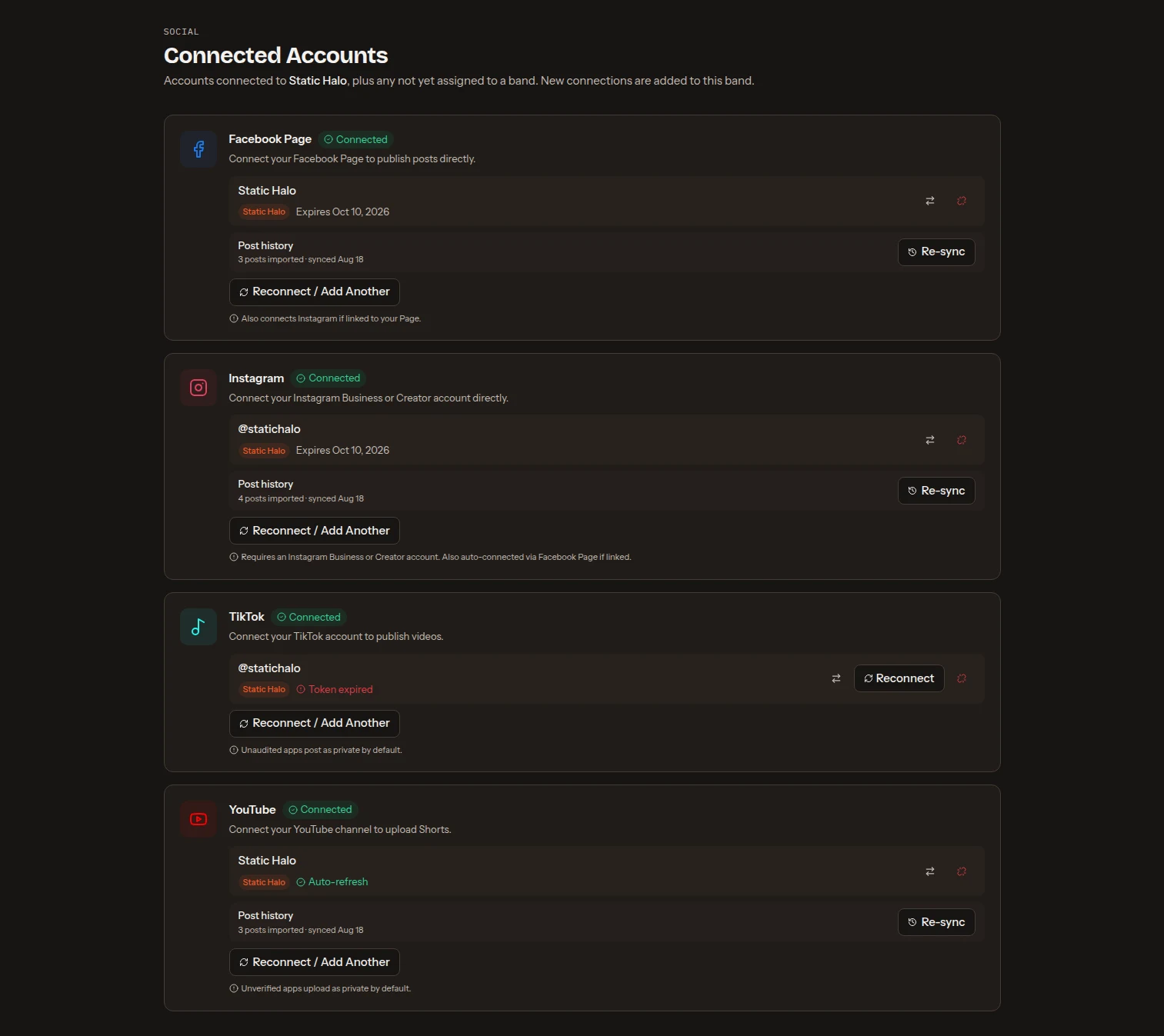
The Accounts page manages the social connections of the band in the switcher — plus any account not yet assigned to a band, since this is where you assign it. Switch bands to manage another band's connections. Connect:
- Facebook Page — publishes to your Page; a linked Instagram account connects automatically.
- Instagram — Business or Creator accounts (via Facebook or linked directly).
- TikTok — you pick who can see each post (public, friends, or private) in the composer; TikTok only offers the audiences your own account allows.
- YouTube — publish as a Short or a regular video (pick the content type when composing); uploads go out public on your channel. Anything published through Band Social before 14 September 2026 went up private and stays that way — change it from YouTube Studio.
Each connected account shows the band it's assigned to and its token status — Expires {date}, Auto-refresh, or Token expired. You can move an account to another band, reconnect an expired one, or disconnect it. New connections attach to whichever band is active in the switcher; an account moved elsewhere leaves this page, so switch bands to see it there. A connected TikTok account also gets a Your TikTok videos panel — a grid of the account's own public videos with views, likes and comments, each linking out to TikTok.
Connecting never takes a page off another band. One Facebook login can manage Pages for several of your bands, and a connect run for one band returns every Page that login can see. A Page that already belongs to a band stays with that band, whoever is connecting and however often — only the band menu on this page moves an account, and only because you asked it to. When a connect leaves pages where they were, it tells you which ones and which band holds them. Reconnecting to refresh an expiring token is safe from any band: the credentials are always renewed, the assignment is never touched.
Import your post history
Band Social can pull in the posts your band already published on a network, so it knows your back catalogue on day one instead of only knowing what you published through it — that history is what teaches AI captions your real voice.
- On connect it happens by itself: finish an OAuth connection and the last 90 days of that platform's posts are imported in the background.
- Later, each connected platform card has a Post history row with an Import button; once history is stored it shows the count and last sync date, and the button becomes Re-sync.
Re-running an import is safe — stored posts are updated rather than duplicated, and posts you published through Band Social aren't mirrored back in as copies. Imported posts appear on your content calendar as read-only entries and stay off your dashboard, which remains a view of the posts you wrote here. Nothing is written back to the platform. Disconnecting the last account for a platform also removes that platform's imported history.
Public page & page builder
Every band gets a shareable public page at band.social/your-band — a mini-site for fans, promoters and press. Turn it on from Band Profile → Public Page, then copy or open its URL. The address comes from your band name and is fixed when the band is created — see Your public web address. It can include, in the order you choose:
- Next Show banner — your next upcoming show with a live countdown, its cover artwork and a tickets link.
- About, Genre & Style, and Members.
- Upcoming Events — shows marked public, with dates, venue, location, ticket links and the show's cover image (tap it to open it full size). The cards sit two per row on tablets and desktops, one per row on phones.
- Photos — a gallery with a lightbox.
- Listen & Follow — your links as tappable tiles.
- Music — embedded Spotify and Apple Music players.
- Contact — a Get in Touch button pinned to the bottom-right of the page, opening a pop-up form that emails your band directly. It floats above the page rather than taking a slot in the section order, but the Contact Form toggle still switches it on and off.
- Press Kit — a button to download your EPK as a PDF.
The page needs an active Social or Pro subscription. It's a Social feature, so if your trial ends without a subscription, your subscription lapses, or you're on Booking only, the address keeps working but visitors see a short page unavailable notice instead of your page — the bio, dates, photos and press kit are all hidden, and search engines are told not to index it while it's dark. Nothing is deleted: the page comes back exactly as it was, on the same URL, the moment you subscribe again.
Page builder
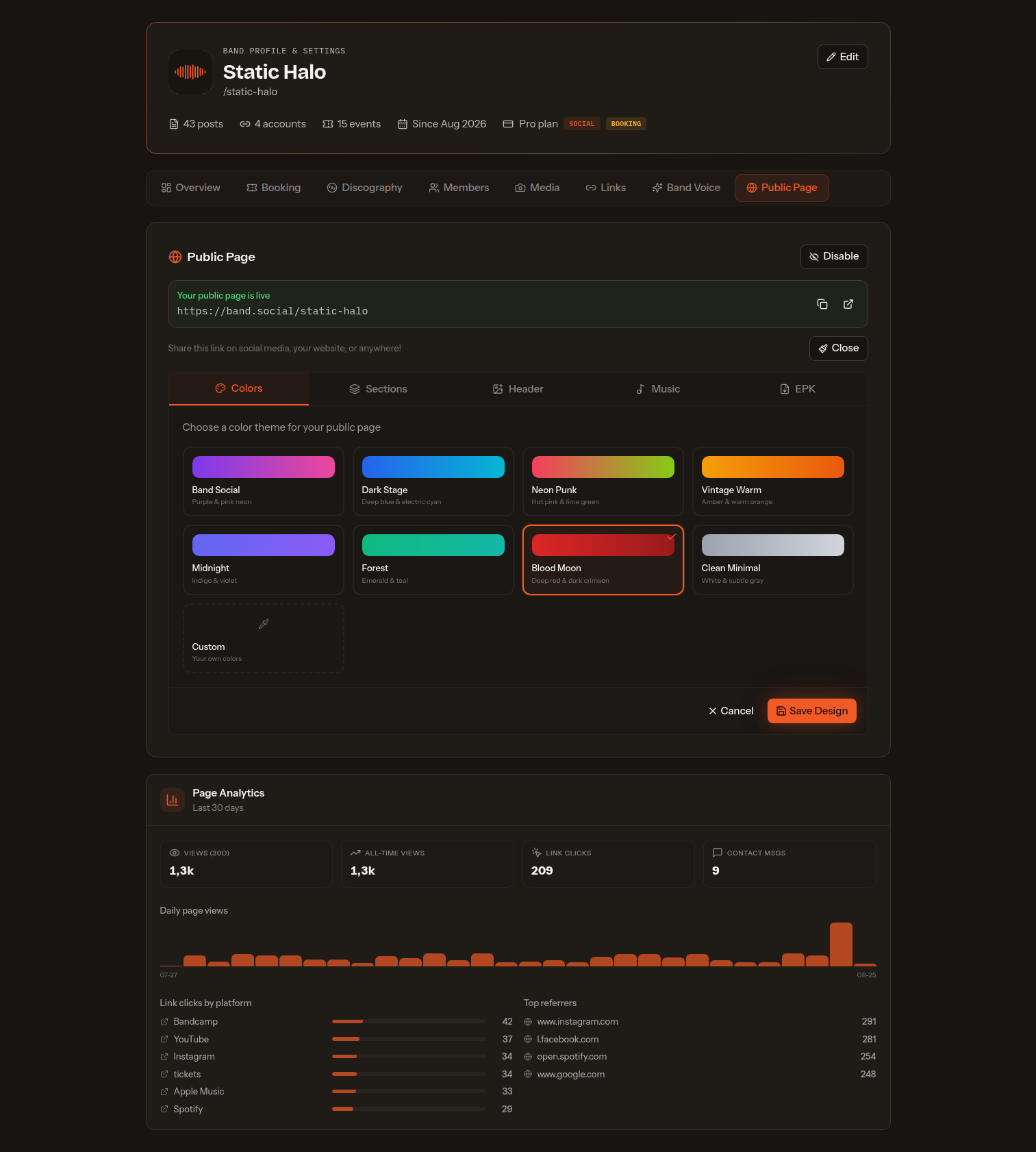
Click Customize to open the page builder, which has tabs for Colors (8 presets — Band Social, Dark Stage, Neon Punk, Vintage Warm, Midnight, Forest, Blood Moon, Clean Minimal — or fully custom hex colours, each picked in the same in-app colour picker the Video Studio uses, which offers the page's other four colours as presets), Sections (toggle each section on or off and reorder it with the up/down arrows), Header (your banner image and how it sits), Music (paste Spotify / Apple Music links to embed) and EPK (your press photos). Only sections that are turned on and actually have content appear on the live page.
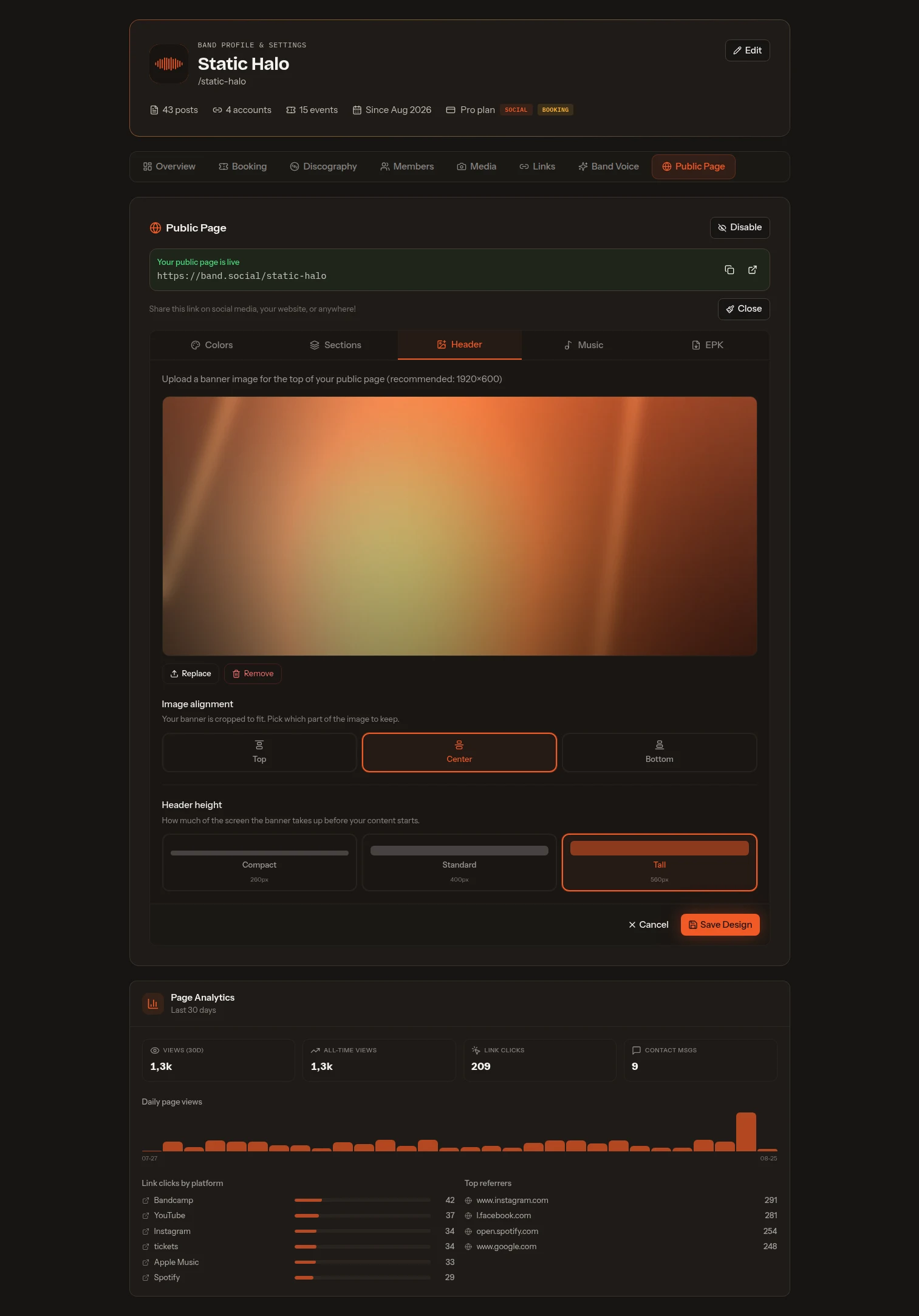
On the Header tab, Image alignment (Top, Center or Bottom) picks which slice of a tall photo survives the banner crop, and Header height — Compact (260px), Standard (400px) or Tall (560px) — sets how much of the screen the banner fills before your content starts. Standard is the default, and the height applies with or without an image, since the colour gradient fills the same slot.
Press kit (EPK)
Your public page doubles as an electronic press kit. The Download EPK button generates a polished PDF on demand, so you always have a professional one-pager ready when a promoter or journalist asks. It carries your logo, band name, genre and style tags, a facts strip (city/country, formation year, line-up size) and a Booking & press line, your band bio (the description from Band Profile → Overview — there is no separate press bio to keep in sync), your press photos, members, upcoming public shows, and your links grouped into Listen, Watch & Follow and Contact & More, all clickable. A footer signs it off with a Powered by Band Social wordmark, in white or black depending on how light your page colours are.
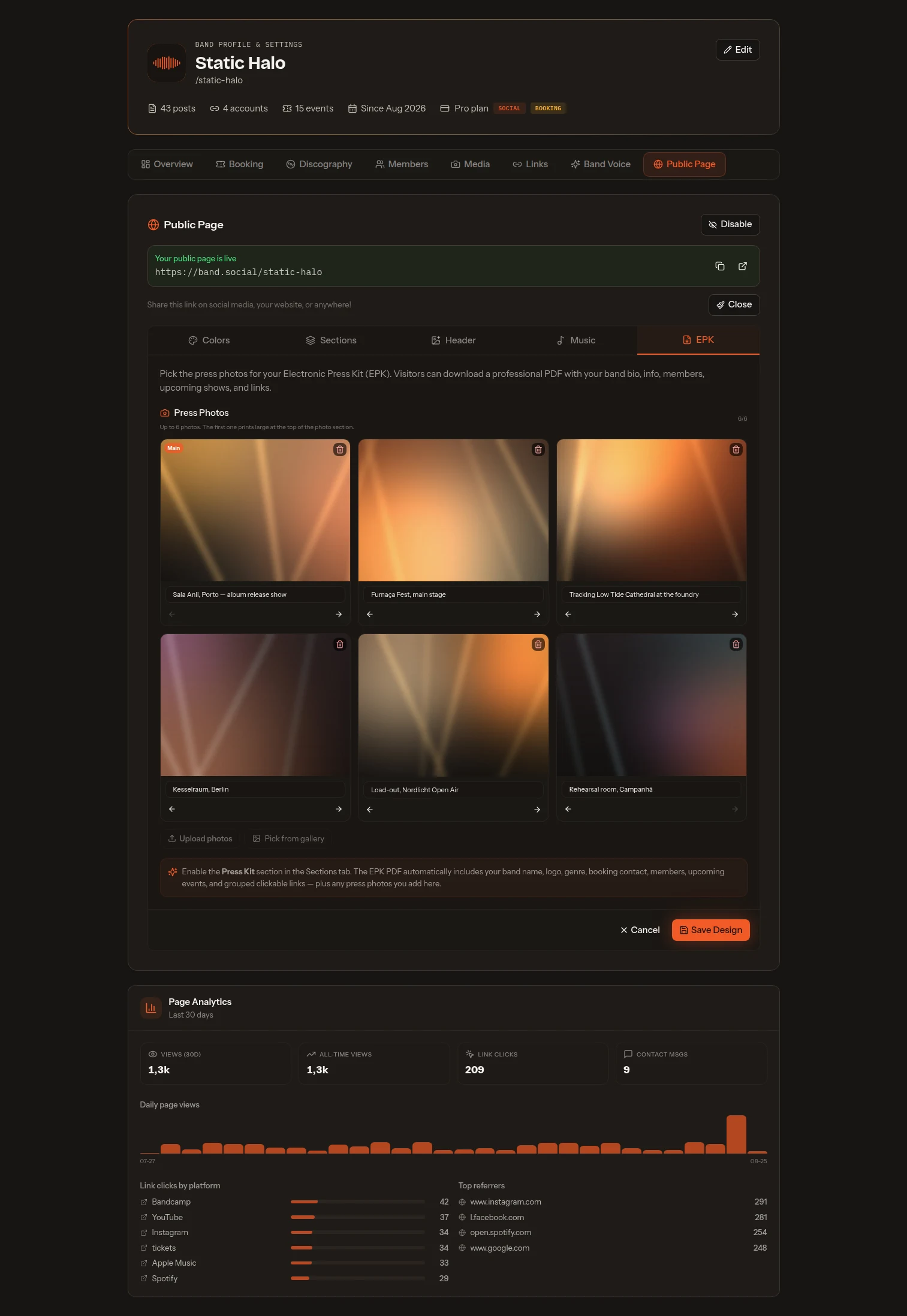
Press photos are attached in the page builder's EPK tab — up to six, uploaded or picked from your band gallery, each with an optional caption or photo credit, and reorderable. The first prints large across the full width in a wide cinematic crop; the rest print below it as portraits, three to a row, which suits band photography shot vertically and keeps faces in frame.
Analytics
When your public page is enabled, the Band Profile → Public Page section shows its analytics: Views over the last 30 days and all-time, Link clicks (broken down by destination), Contact messages received, a daily-views chart and your top referrers — so you can see which channels actually send people your way.
Reports
The Report page is a hub for tracking how the band is growing and how it's publishing.
Followers
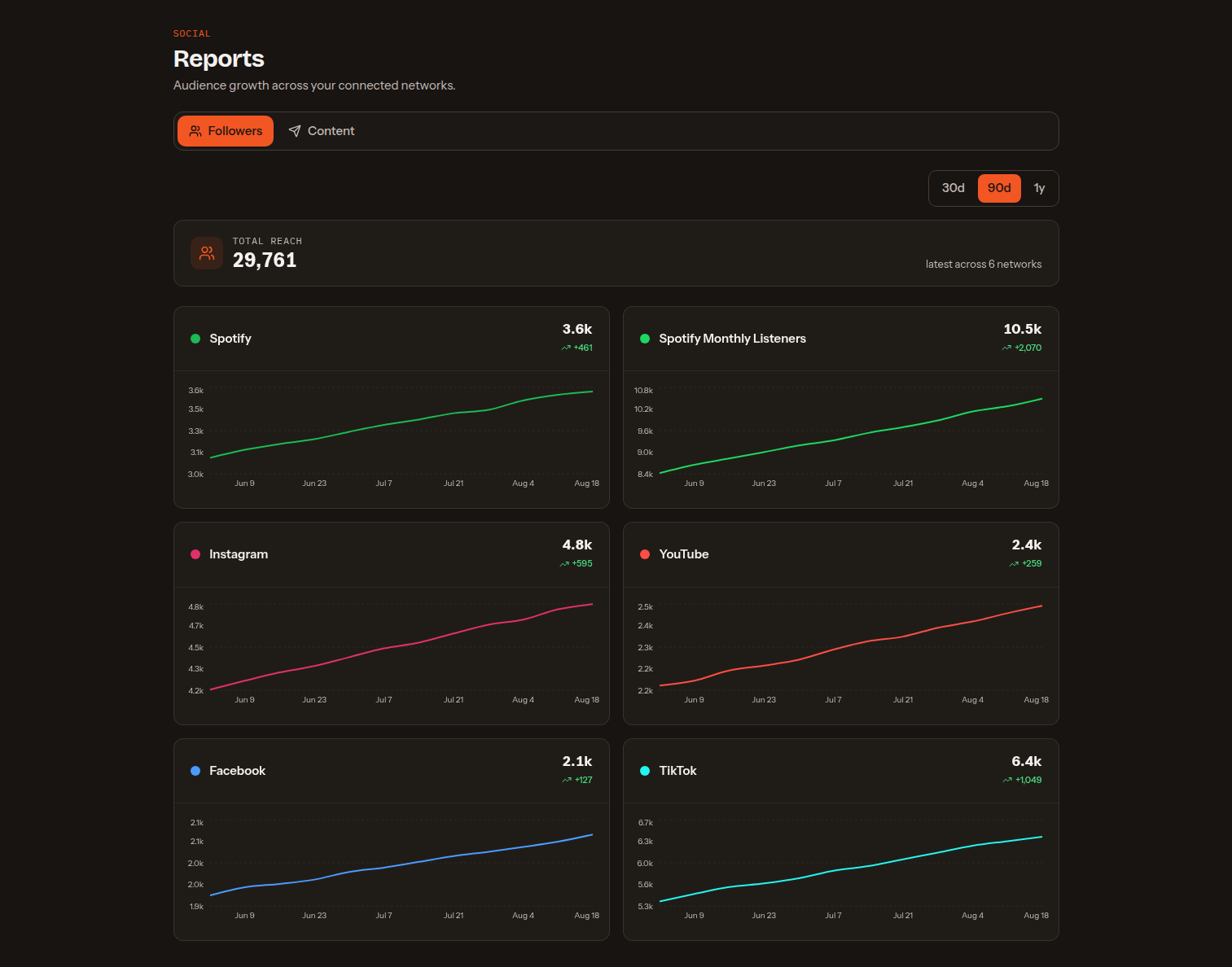
Charts your audience across every connected network. Band Social records a follower/subscriber snapshot for each platform over time — Spotify, Instagram, YouTube, Facebook and TikTok — and draws a growth line per platform (each on its own scale, since audience sizes differ so much). When a Spotify artist is connected, your monthly listeners are tracked as their own line alongside followers. Connect a Spotify artist or a social account and its history starts building automatically.
Content
Reports on how you publish, drawn from your posts and their publish logs: your output cadence over time, the platform mix of what you post, how reliably each platform actually published, the draft → scheduled → published status breakdown, and your content-pillar mix (with a nudge when one pillar dominates).
Engagement
Shows how your published posts are doing: total views, likes, comments and shares, a row per network, and a list of your posts you can sort by any of them. Facebook, YouTube, Instagram and TikTok are included. Numbers refresh a few times a day for 90 days after a post goes out. A dash means that network doesn't report that number — Facebook views, for example — and Instagram shows likes and comments only. On TikTok it covers videos published through Band Social; private videos can't be read back.
What the Social module does#
The Social module is for publishing everywhere at once, planning whole release campaigns, drafting captions with AI, building an owned email audience, and giving promoters and fans a press-ready band page. It's included in the Social and Pro plans (the monthly Content Pack is Pro-only).